

Every page keeps its signals in the same scope
Pages creates one record per page. Each row joins Google Search Console, your analytics source, and AI visibility data, so you don’t have to reconcile separate reports before choosing what to work on. The market selector and date range apply to every signal, with a previous-period comparison. A Tracking indicator in the header shows how many pages are in the set. Four headline numbers show the current value and previous-period change for Visitors, Google Clicks, AI Visibility, and Citation Share.
Visitors, Google Clicks, AI Visibility, and Citation Share for the selected market and period.
Smart filters remove pages that need no attention
Smart filters are on by default. They turn the full table into an attention view by hiding stable, redirected, and pruned pages while keeping the current market and date range intact. The banner says exactly what happened:169 pages hidden, stable, redirected and pruned, so you can focus on what needs work.Show all pages brings the complete table back. The smart filters toggle lets you return to the attention view without rebuilding any conditions.
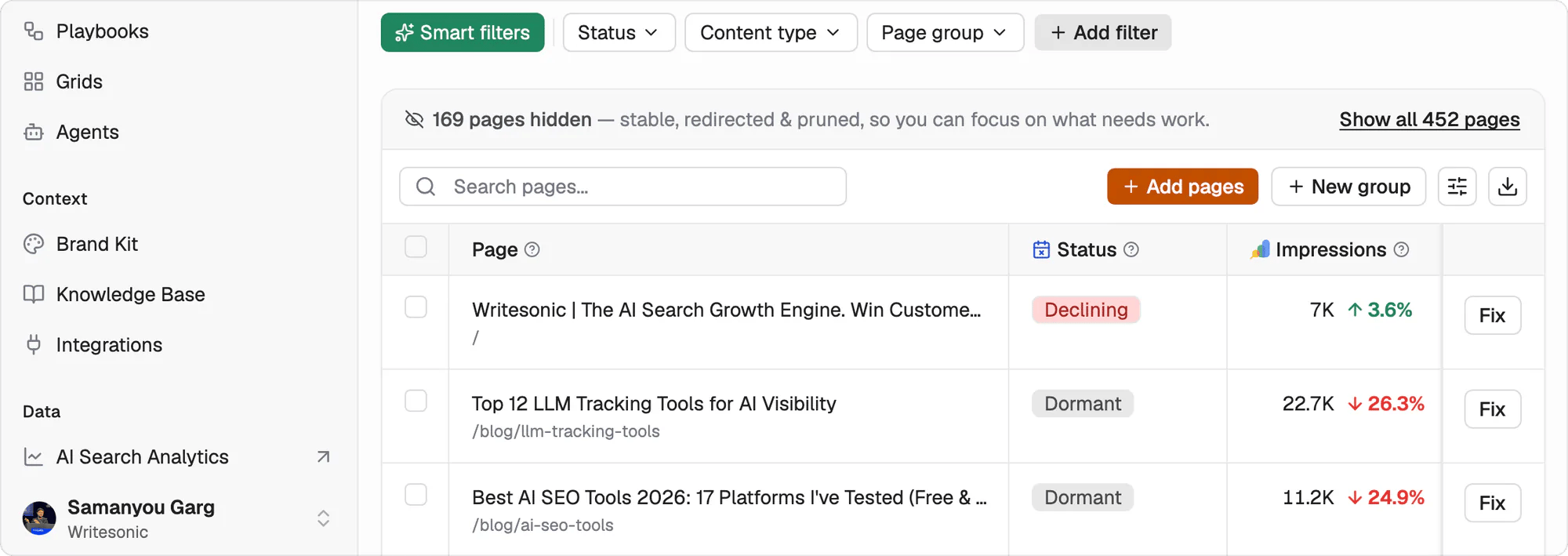
Smart filters narrow the table while keeping Add pages, New group, and page status in view.
Automatic status identifies the condition on each page
The Status column is the fastest way to choose what to work on because the product detects the condition for you. You don’t have to hunt through traffic, ranking, and indexing signals first. A page carries one status: Not indexed, Cannibalizing, Underperforming, New, Rising, Declining, Dormant, Stale, or Thin. Not indexed means Google hasn’t indexed the page. Cannibalizing means two of your own pages are competing for the same query. Dormant and Stale identify pages that have stopped moving, while the remaining values separate new momentum, lost momentum, and pages that need closer review.Custom filters isolate a precise opportunity
Select Add filter to build a condition using Primary keyword intent, Traffic, Clicks, Impressions, Position, Citations, Citation Share, or AI bot visits. Each metric includes its value and its trend, such as Position and Position Trend. Two filters are especially useful:- Set Position from 11 through 20 to find pages sitting just off page one.
- Set Citations Trend to falling to find pages losing ground in AI answers.
Page groups match the way campaigns are planned
Page groups are your own labels for sets of URLs. The useful unit is usually a topic cluster or campaign, such as competitor-alternative pages you’re prioritising this month or every page tied to a Q3 product launch. Tag a page from the Page groups column on its row. One page can belong to more than one group, which lets the same URL sit inside both a topic cluster and a launch campaign. Create a group from the Page group filter by typing a name that doesn’t exist yet, or select New group. Manage groups lets you rename or remove groups. Once created, every group becomes a table filter.Add pages brings missing URLs into the table
Select Add pages for URLs the table doesn’t already cover. Paste one URL per line or upload a CSV, then optionally place the new pages into a page group as you add them.Every row carries enough context into the fix
The table also includes Page, Impressions, Clicks, Traffic, Position, Citation Share, Type, Primary keyword intent, and Page groups. Every row ends with Fix, which hands the page to an agent with its signals attached. Open the page detail when you need the full view for one row.What’s next
Page detail
Open the signals and opportunities attached to one page.
Activity log
Review the work completed by your agents.