

Connect what you have, starting with search and analytics
A few categories carry most of the value. Search is Google Search Console, and it’s the one integration Agents requires. It tells an agent which queries a page already wins, which it nearly wins, and where it slipped. Without it there’s no SEO half to the page record. Analytics is Google Analytics or Plausible, whichever you run. Neither is required, but connect one. It’s what turns a ranking into a business number, so the agents can rank work by what it’s worth rather than by traffic alone. Adobe Analytics is on the way. CMS is where finished work lands. Without it, an agent hands you a document and you paste it yourself. With it, the draft appears in the system your team already publishes from. AI visibility needs nothing from you. It comes across from the Writesonic platform automatically. If access is slow to arrange, connect Google Search Console and add the rest as it clears. That’s the floor, not the target. Everything you add widens what the agents can decide for themselves. Follow Connect your data for the setup steps.The full catalogue
Open the Apps tab, select Add connection, and filter by All, Code, Communication, Data, Design, or Productivity.
The SEO data integrations are for teams that already pay for those tools and want the agents reading the same numbers they do.
More integrations are coming, and you can ask for the one you need
The catalogue keeps growing. If the app your team depends on isn’t listed yet, select Request an app? at the bottom of the catalogue, or reach out to sales or your account manager with the app name and what you’d want it to feed.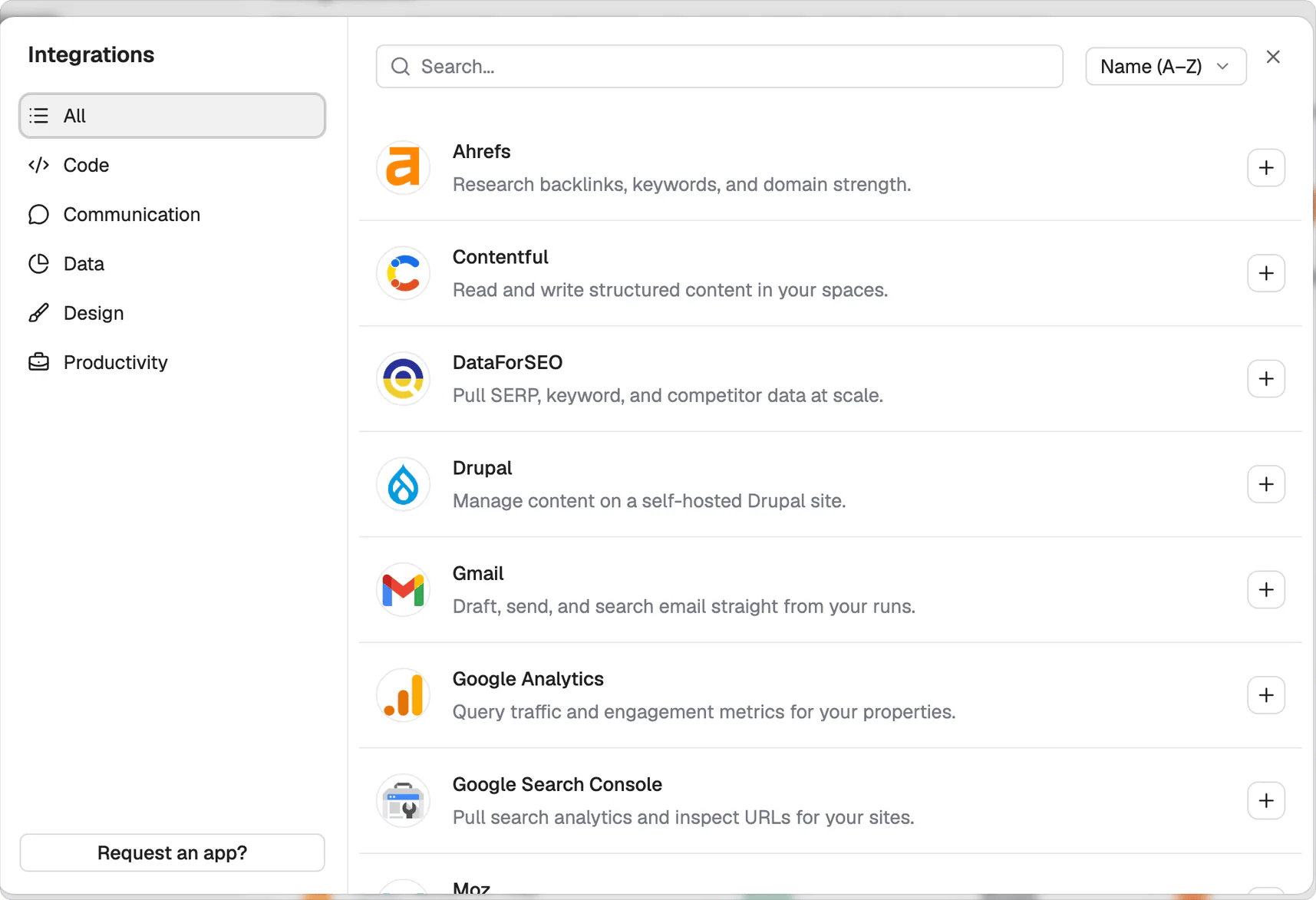
Add connection opens the catalogue. Filter by category on the left, and Request an app? sits at the bottom.
Connections stay with the workspace and access stays project-specific
Connections belong to the workspace. You assign each connection only to the projects that should use it. The Connections tab shows its status and which projects have access. On a team, this makes access visible and keeps unrelated projects separate.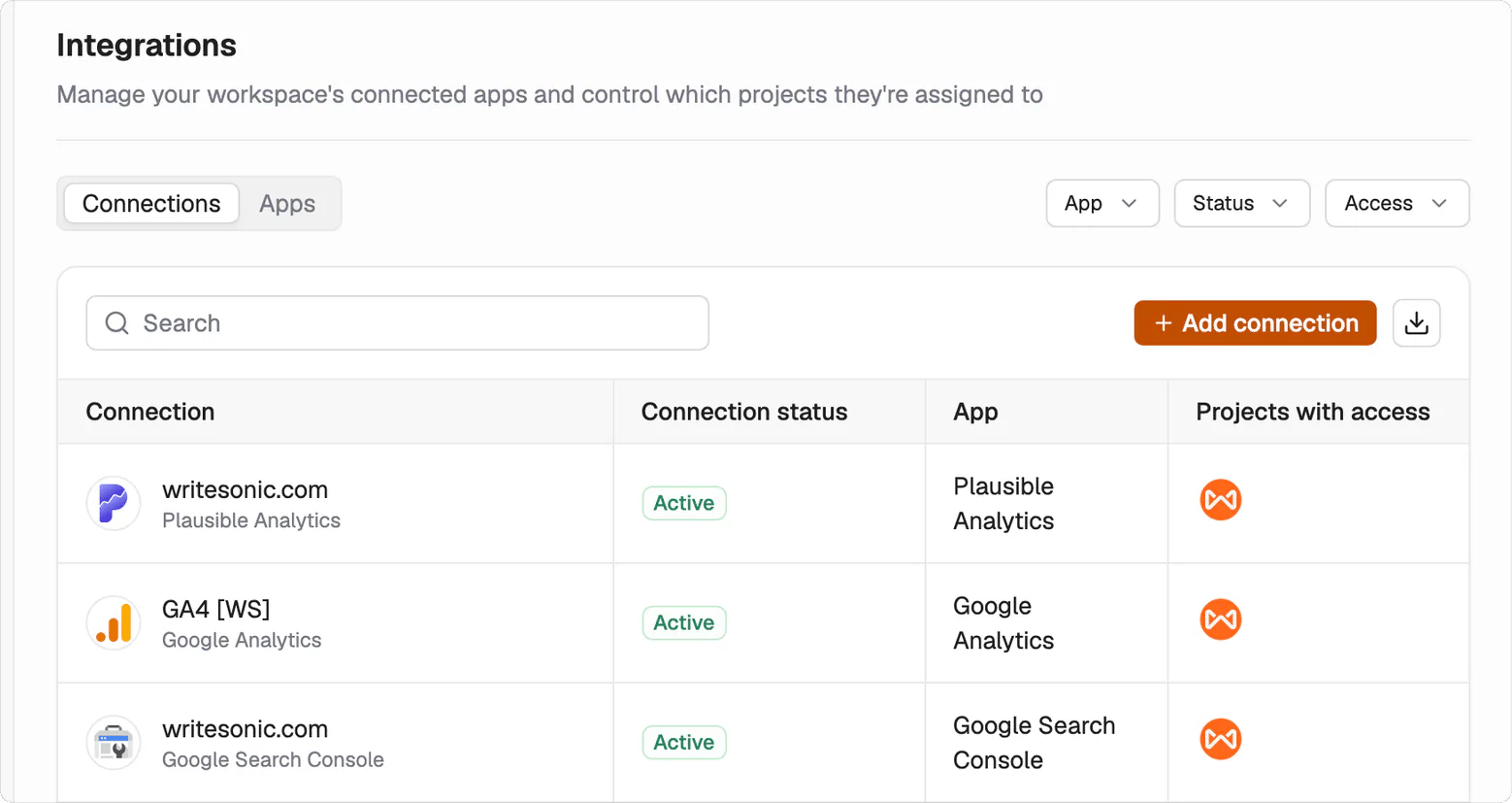
Each connection shows its status, the app behind it, and which projects can use it.
Third-party SEO data uses your own subscription
You bring the API key. Each third-party SEO integration requires an active subscription with that provider. Add the connection with the API key from your account. The subscription isn’t included with Writesonic.What’s next
Connect your data
Follow the setup steps.
Publishing
See how work reaches your CMS.