How Fact Check Works
Fact Check works in three steps:- Select prompts to check. Choose the questions you track about your brand, products, or category.
- Add your facts. Provide verified information about your brand, such as pricing, product features, integrations, and company details.
- Identify inaccuracies. Writesonic compares claims in AI-generated answers against your facts and flags contradictions. You can then investigate the claims and their associated citations.
Tip: Fact Check works best with prompts where AI is likely to describe your brand directly, such as questions about pricing, product comparisons, or whether your brand is suitable for a particular use case.
Setting Up Fact Check
When you open Fact Check for the first time, you’ll see two setup steps: Add prompts to check and Add facts.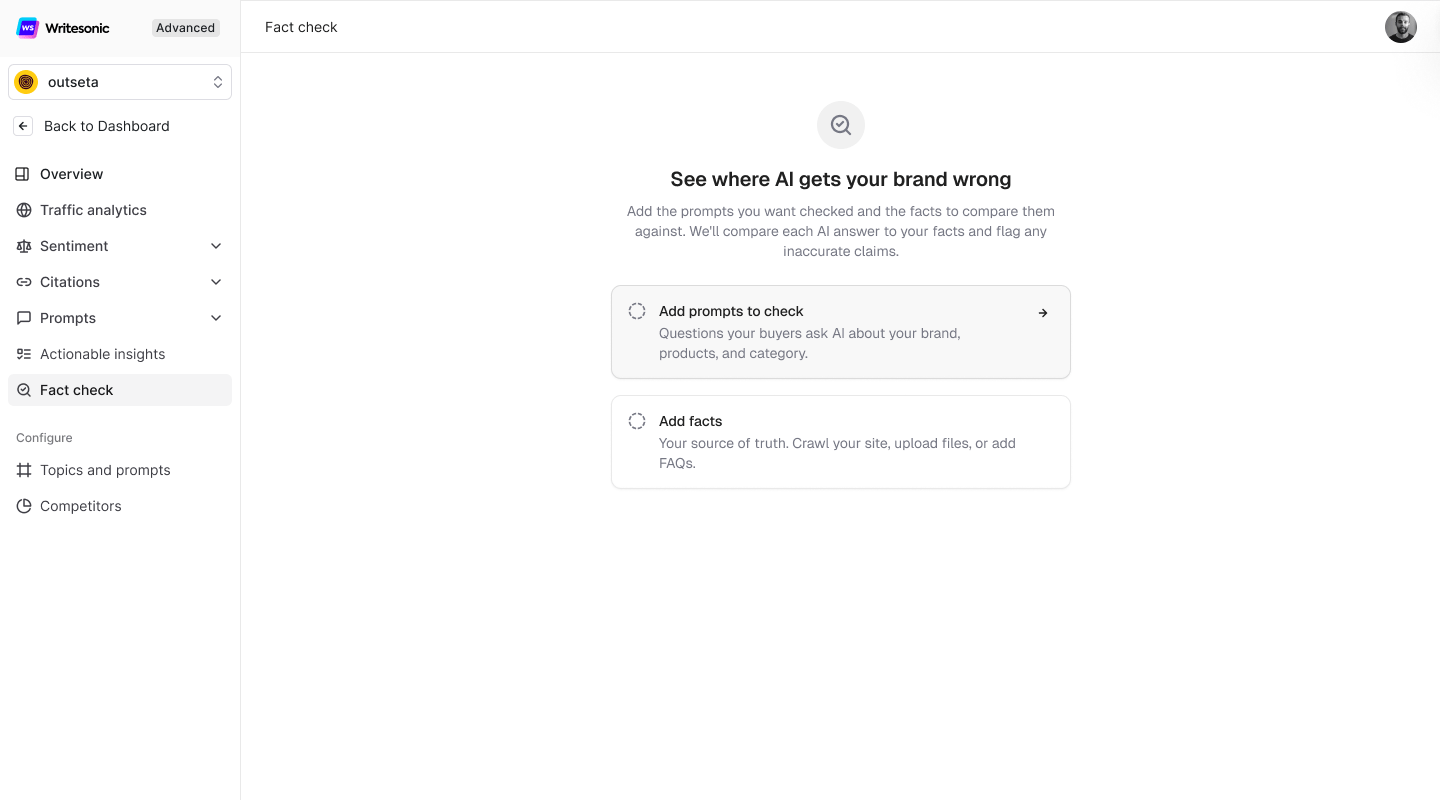
Step 1: Add Prompts to Check
- Click Add prompts to check.
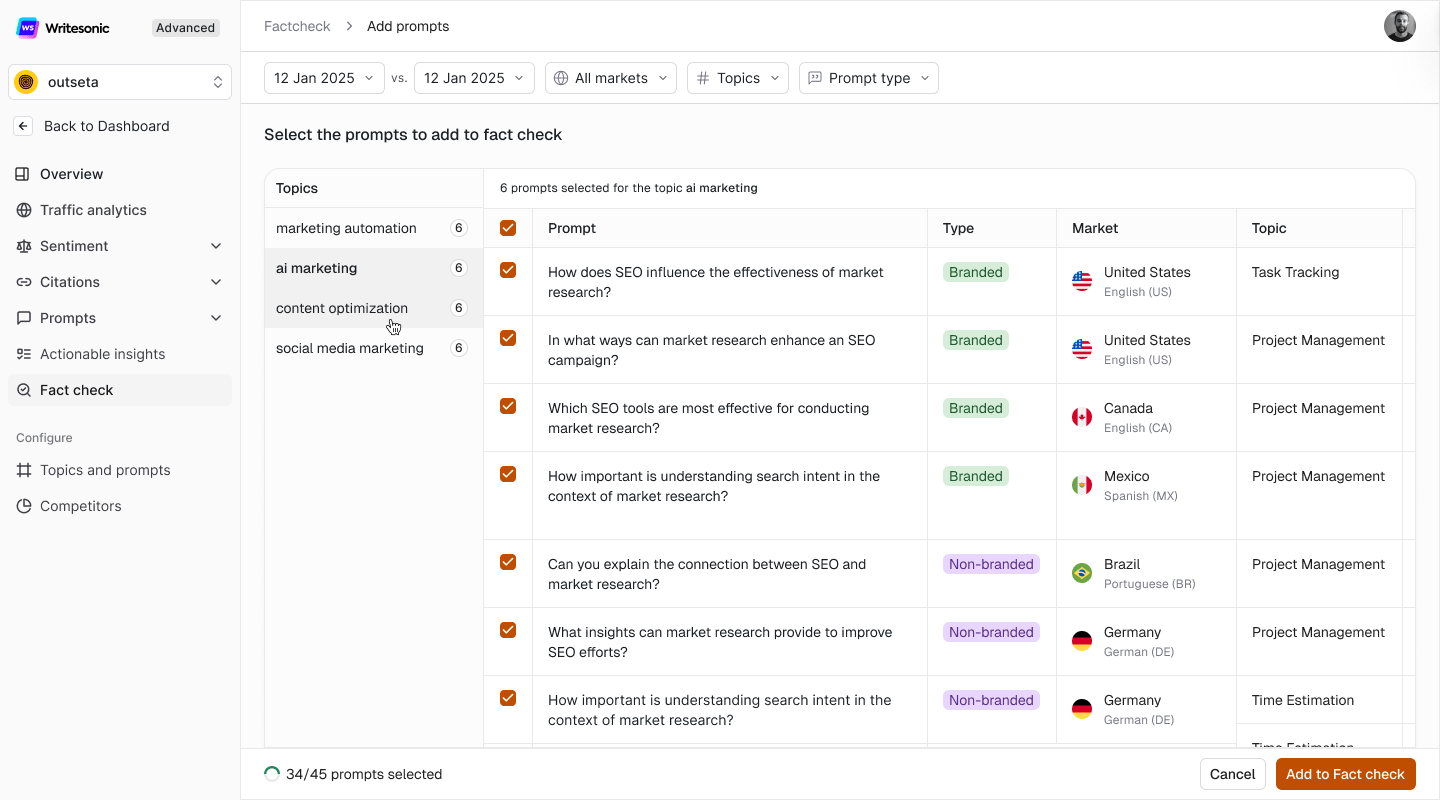
- Pick a topic from the Topics list on the left. The table shows every prompt in that topic, with its Type (Branded or Non-branded), Market, and Topic.
- Select the prompts you want checked. Use the filters at the top to narrow the list by date, market, topic, or prompt type.
- Click Add to Fact check.
Step 2: Add Facts
Next, add the facts you want AI-generated answers checked against. You can enter facts manually, sync them from your brand kit, generate them from website URLs, or upload files. If you skip this step, Writesonic can suggest facts based on AI-generated answers to your tracked prompts. You can review and accept these suggestions to build your facts list.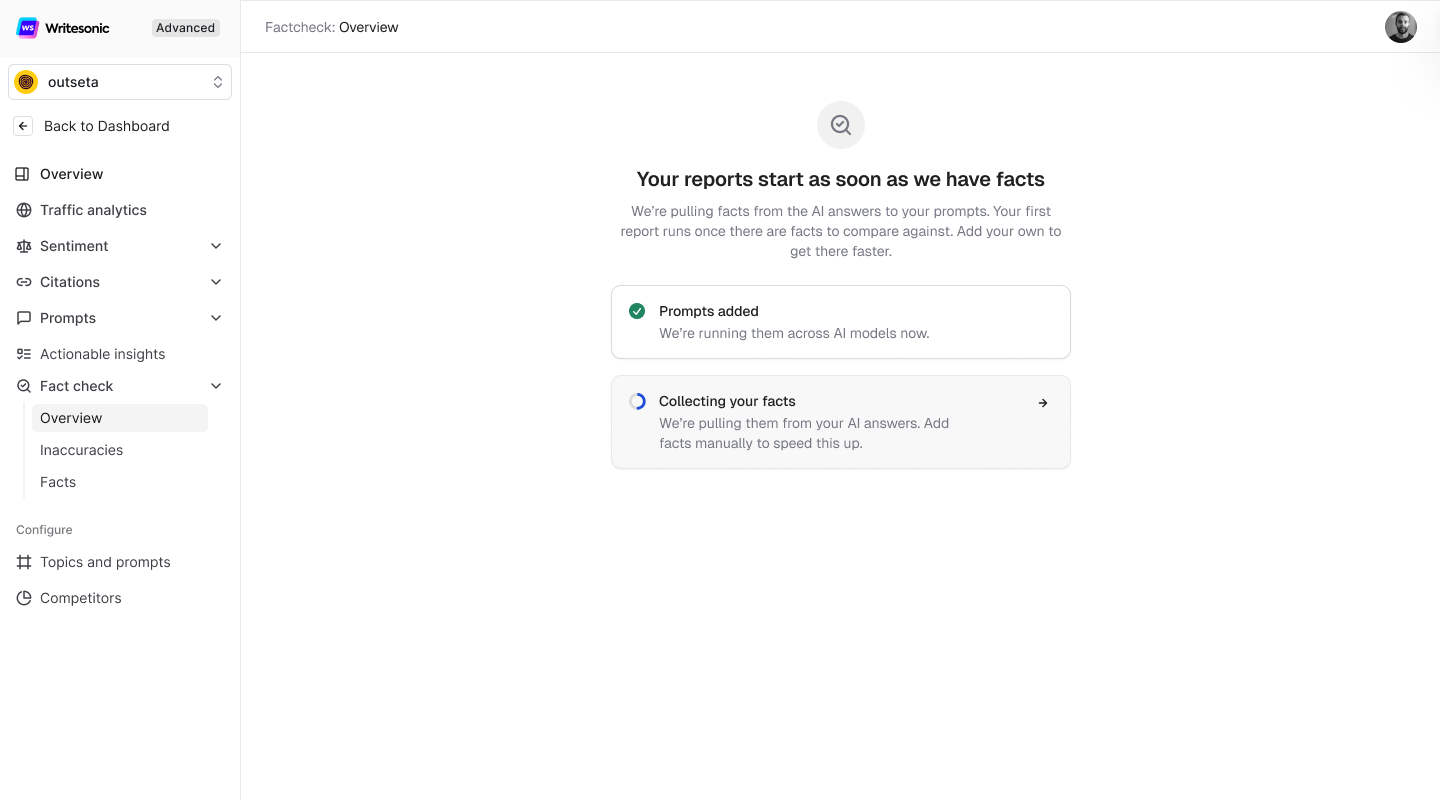
Tip: Add your own facts to get your first report faster. Pricing, product, and policy pages are a good place to start.
Managing Your Facts
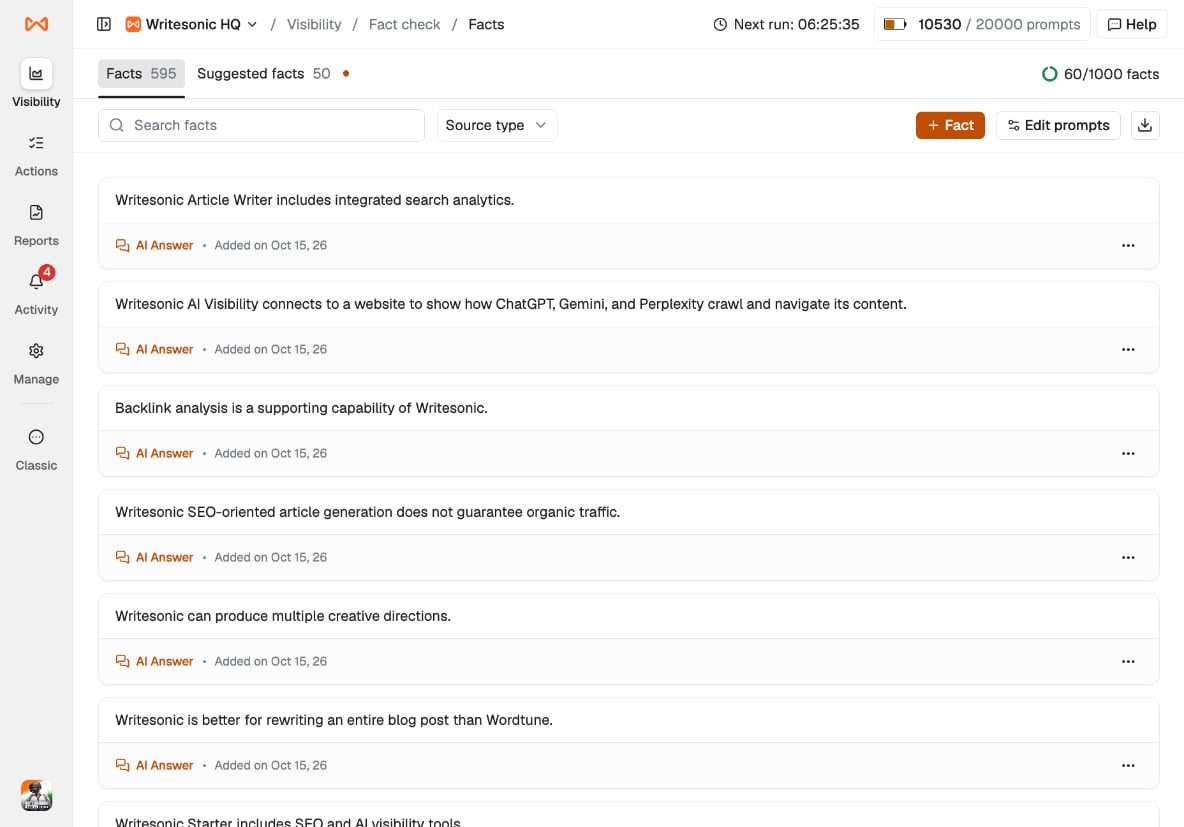
Go to Fact Check > Facts to view and manage the facts used to check AI-generated answers. This section has two tabs: Facts, which contains your existing facts, and Suggested facts, which contains claims extracted from AI answers for your review.Facts
The Facts tab lists every fact you’ve added. For each fact, you’ll see:- The fact itself: the statement AI answers are checked against.
- Source: where the fact came from, such as AI Answer, Brand kit, a URL, a file name, or Manually added.
- Added on: the date the fact was added.