> ## Documentation Index
> Fetch the complete documentation index at: https://apidocs.writesonic.com/llms.txt
> Use this file to discover all available pages before exploring further.

# Integrating with Vercel Log Drains

> This doc will guide you how to Integrate the AI Traffic Analytics using Vercel. It uses Vercel's log drain feature and can only be availed by users on Vercel Pro/Enterprise plan

## Prerequisites

* An active Writesonic account
* Admin access to your Vercel account

## Start in Writesonic

### 1. Head over to the [AI Traffic Analytics page](https://app.writesonic.com/geo/ai-traffic-analytics) on Writesonic and click on *Vercel*
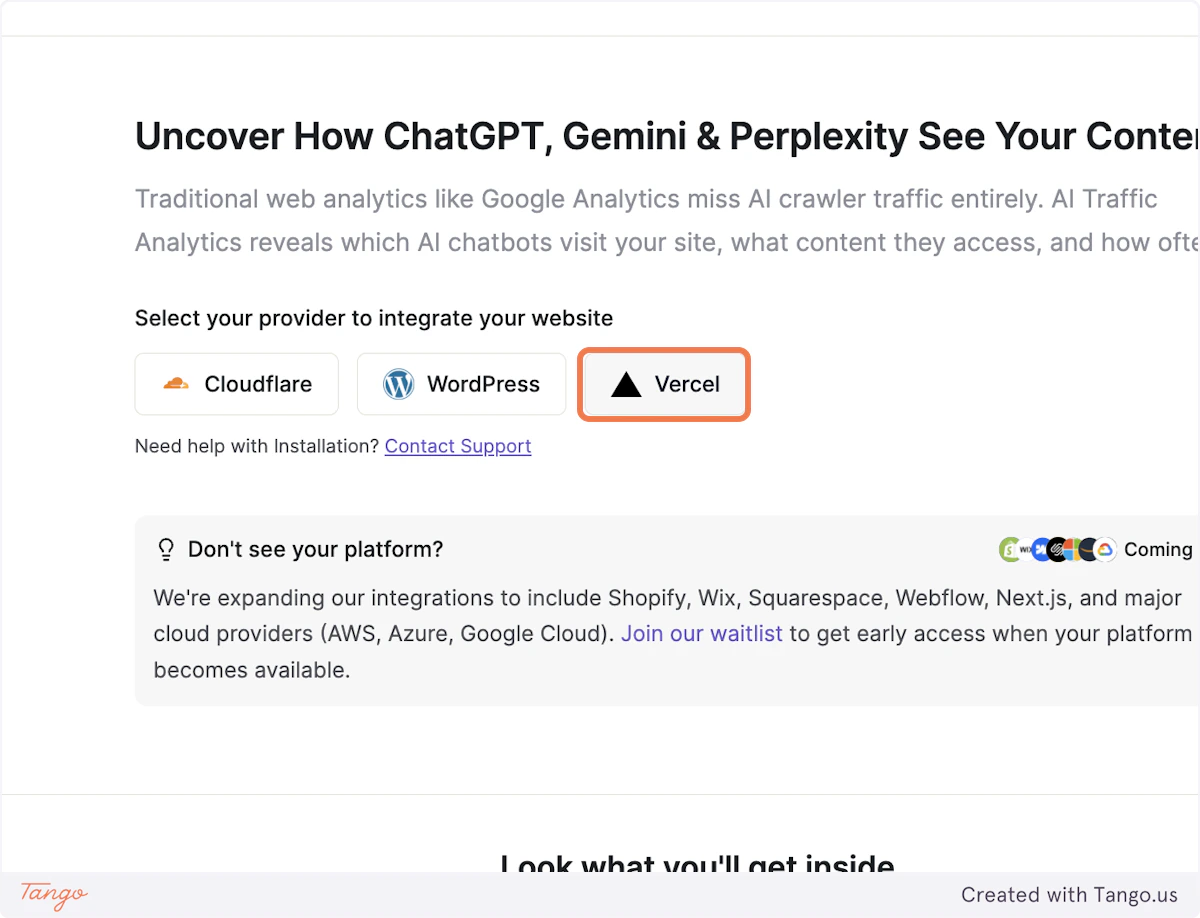
<img src="https://mintcdn.com/writesonic/JCO6iEy5GoxeFx_e/images/docs/workflows/22177c05-460e-4394-a998-63c424f04747/steps/25428562-9e94-494b-b529-e3df23a07b1f/aabc4a4c-770d-461d-99c8-22b508c5b08f.png?fit=max&auto=format&n=JCO6iEy5GoxeFx_e&q=85&s=74839905c74114c450f7b6480c959008" alt="Step 1 screenshot" width="1200" height="918" data-path="images/docs/workflows/22177c05-460e-4394-a998-63c424f04747/steps/25428562-9e94-494b-b529-e3df23a07b1f/aabc4a4c-770d-461d-99c8-22b508c5b08f.png" />

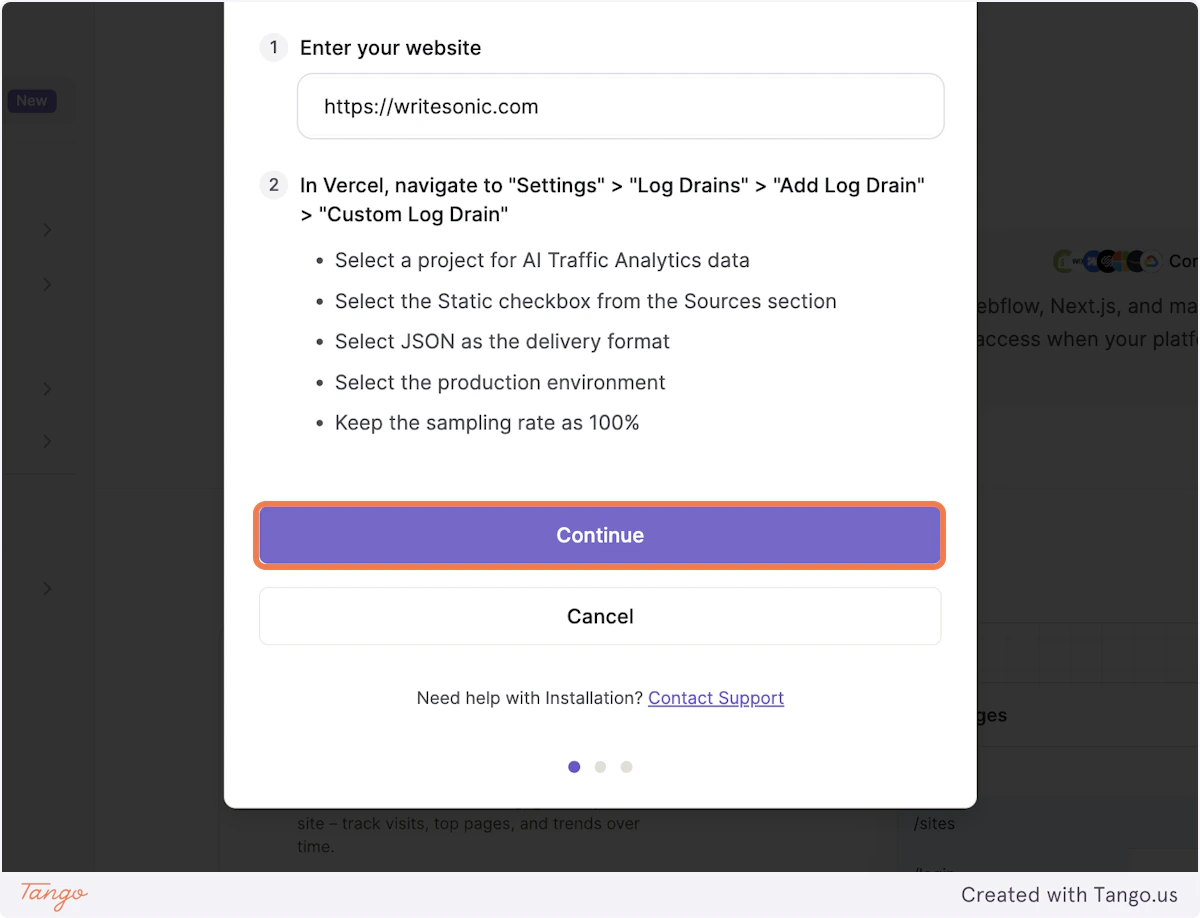
### 2. Enter your url in the input box
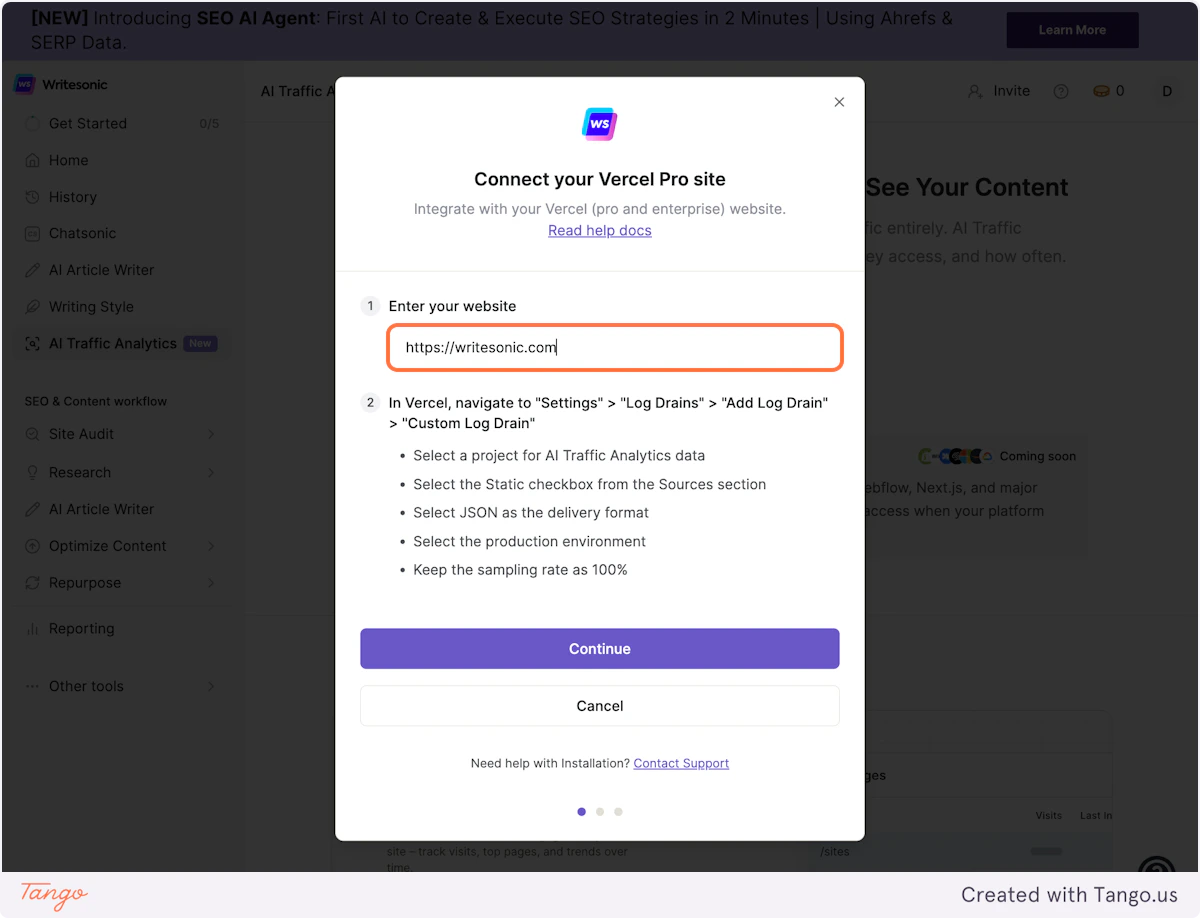
<img src="https://mintcdn.com/writesonic/JCO6iEy5GoxeFx_e/images/docs/workflows/22177c05-460e-4394-a998-63c424f04747/steps/55afd047-5bec-42c7-a36a-34cb5d2fac57/c28d4c2e-73cb-4efa-a0e4-cbc583b3ea93.png?fit=max&auto=format&n=JCO6iEy5GoxeFx_e&q=85&s=7e094ab97bd66659c95c248ef796443d" alt="Step 2 screenshot" width="1200" height="918" data-path="images/docs/workflows/22177c05-460e-4394-a998-63c424f04747/steps/55afd047-5bec-42c7-a36a-34cb5d2fac57/c28d4c2e-73cb-4efa-a0e4-cbc583b3ea93.png" />

### 3. Click on Continue

<img src="https://mintcdn.com/writesonic/JCO6iEy5GoxeFx_e/images/docs/workflows/22177c05-460e-4394-a998-63c424f04747/steps/437a770d-95bf-4199-b9b1-b36beeac891b/87d47762-1b29-4268-be5f-176ef32b6f92.png?fit=max&auto=format&n=JCO6iEy5GoxeFx_e&q=85&s=8ded785c238e4ecfc61c225d29d4d6e6" alt="Step 3 screenshot" width="1200" height="918" data-path="images/docs/workflows/22177c05-460e-4394-a998-63c424f04747/steps/437a770d-95bf-4199-b9b1-b36beeac891b/87d47762-1b29-4268-be5f-176ef32b6f92.png" />

## [Head over to Project Settings in Vercel](https://vercel.com/)

Head over to Project Settings in Vercel

### 4. Click on Log Drains in Project Settings
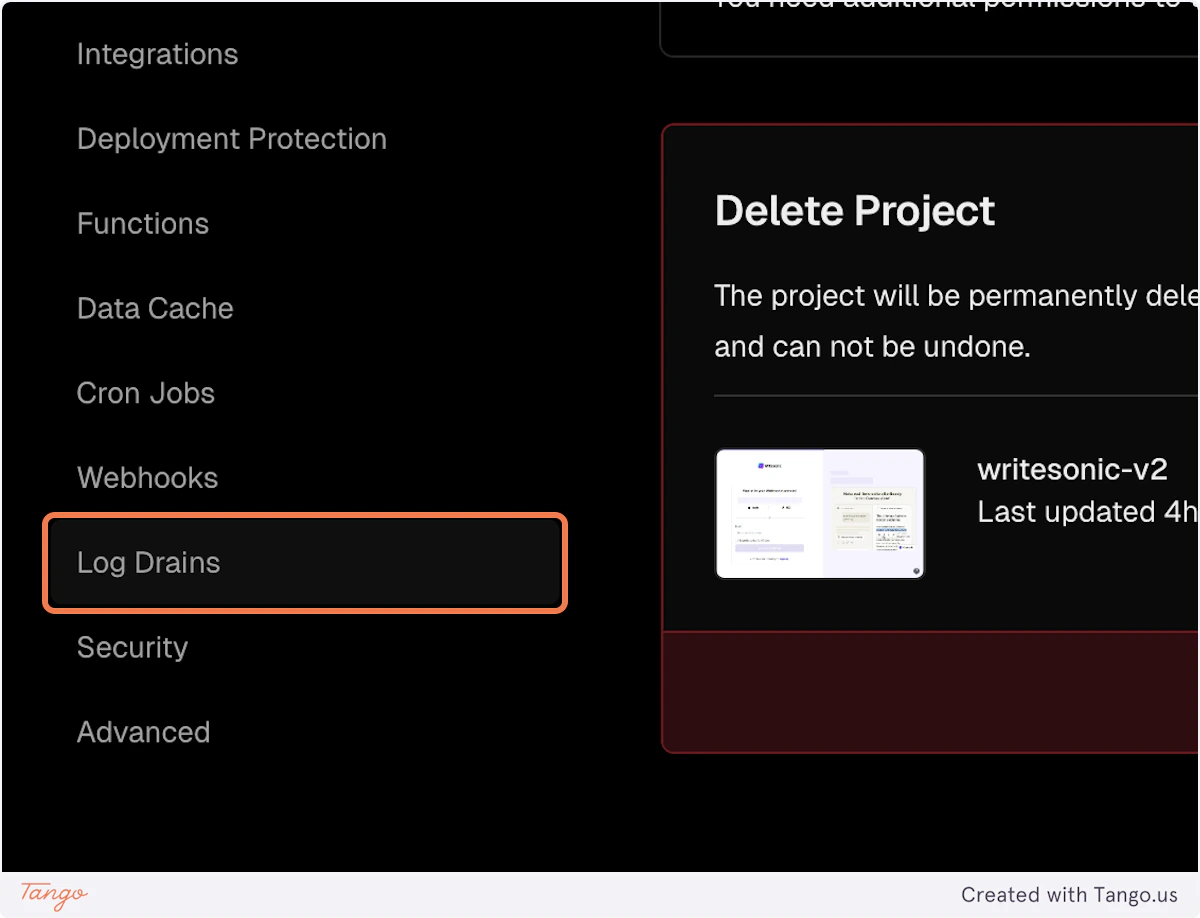
<img src="https://mintcdn.com/writesonic/JCO6iEy5GoxeFx_e/images/docs/workflows/22177c05-460e-4394-a998-63c424f04747/steps/ef3761da-fe03-4c62-828f-53bbb9ba100b/985b3569-67c8-4733-b7d6-6b908cf18193.png?fit=max&auto=format&n=JCO6iEy5GoxeFx_e&q=85&s=54cc4f2aa6c32d37f84403a5f738d1e1" alt="Step 4 screenshot" width="1200" height="918" data-path="images/docs/workflows/22177c05-460e-4394-a998-63c424f04747/steps/ef3761da-fe03-4c62-828f-53bbb9ba100b/985b3569-67c8-4733-b7d6-6b908cf18193.png" />

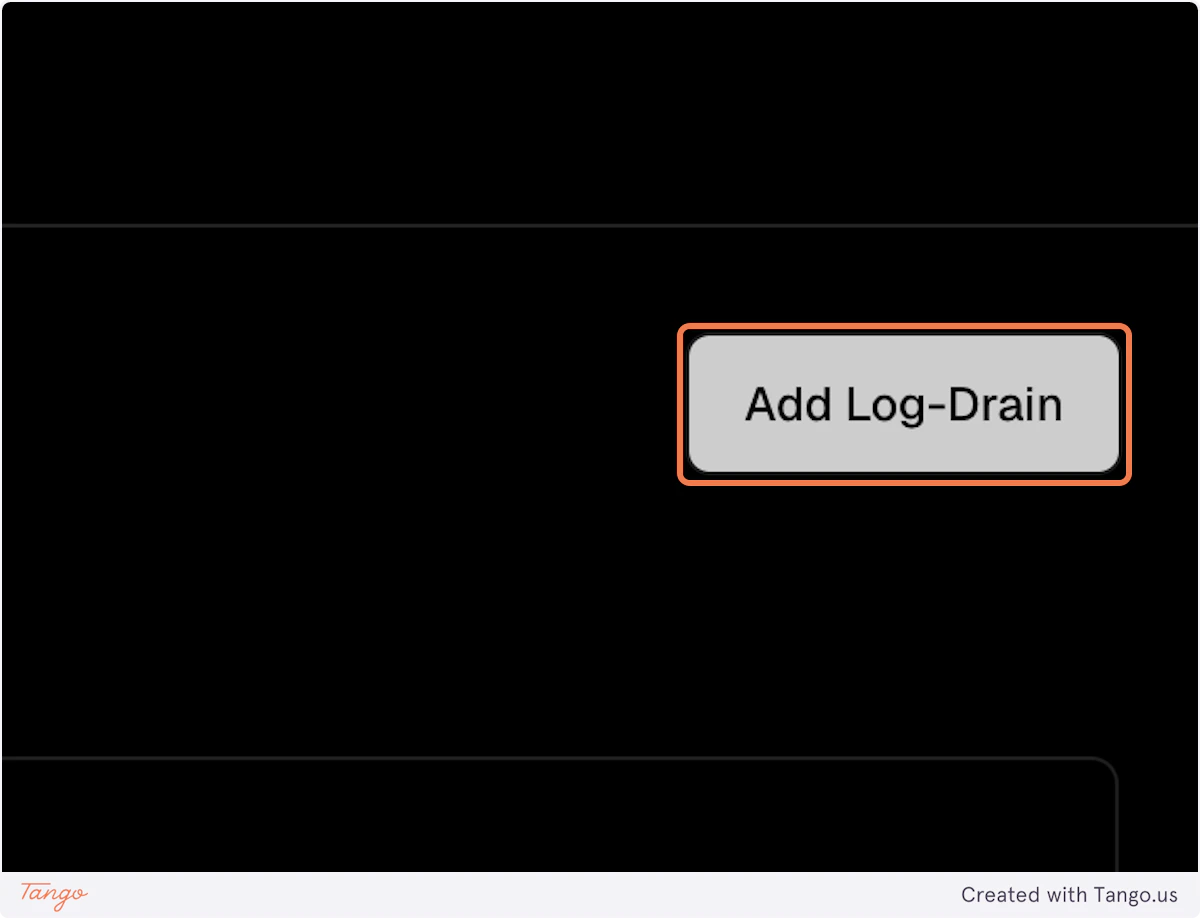
### 5. Click on Add Log-Drain

<img src="https://mintcdn.com/writesonic/JCO6iEy5GoxeFx_e/images/docs/workflows/22177c05-460e-4394-a998-63c424f04747/steps/e12b596b-a93d-48f4-b40d-a59befcabf7e/96029bf5-3285-453a-b76f-39e2e87bdf86.png?fit=max&auto=format&n=JCO6iEy5GoxeFx_e&q=85&s=a5b2637da5f6fd71c160a35f20e9577f" alt="Step 5 screenshot" width="1200" height="918" data-path="images/docs/workflows/22177c05-460e-4394-a998-63c424f04747/steps/e12b596b-a93d-48f4-b40d-a59befcabf7e/96029bf5-3285-453a-b76f-39e2e87bdf86.png" />

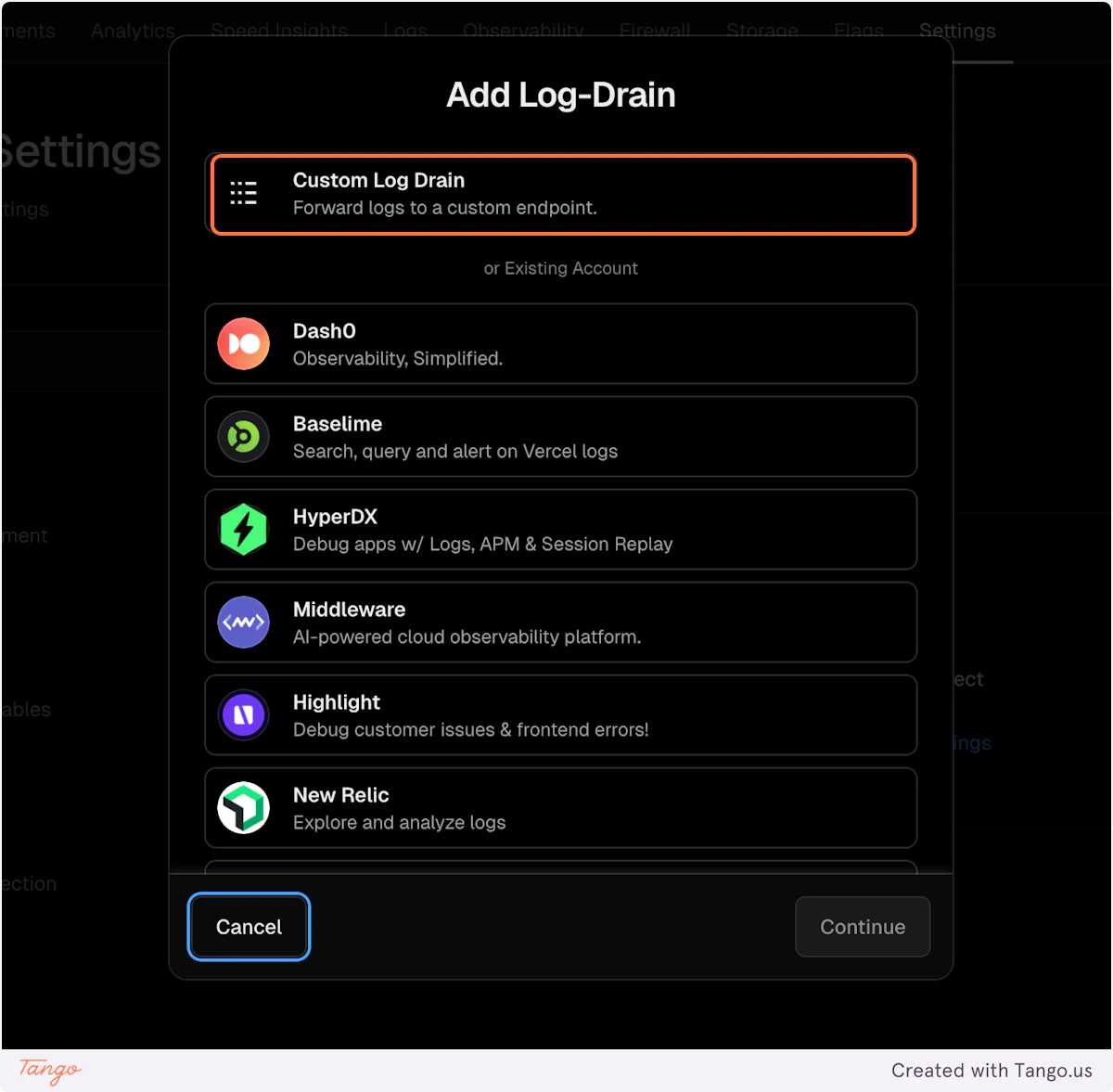
### 6. Select "Custom Log Drain

<img src="https://mintcdn.com/writesonic/JCO6iEy5GoxeFx_e/images/docs/workflows/22177c05-460e-4394-a998-63c424f04747/steps/a768d355-ebc1-4963-bddb-72cc9d01c354/b827bff1-7690-4ea6-9ca8-130d7887aabc.png?fit=max&auto=format&n=JCO6iEy5GoxeFx_e&q=85&s=1f035c4d94b51f80ef6fad60bd24f5ba" alt="Step 6 screenshot" width="1200" height="1177" data-path="images/docs/workflows/22177c05-460e-4394-a998-63c424f04747/steps/a768d355-ebc1-4963-bddb-72cc9d01c354/b827bff1-7690-4ea6-9ca8-130d7887aabc.png" />

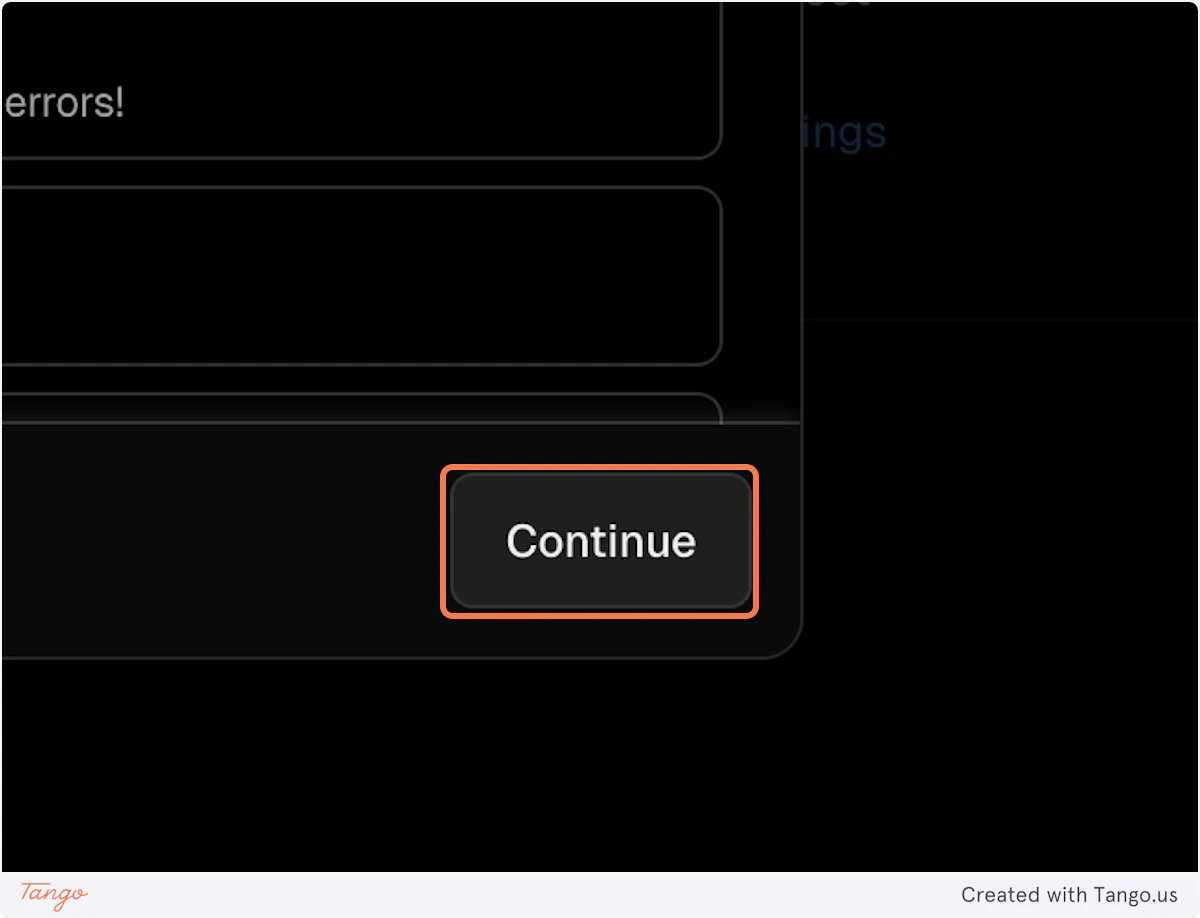
### 7. Click on Continue

<img src="https://mintcdn.com/writesonic/JCO6iEy5GoxeFx_e/images/docs/workflows/22177c05-460e-4394-a998-63c424f04747/steps/4d3e80b0-dbc5-42a6-8334-d24d934a8daa/e13397db-2a81-49a4-8855-59eb52fa81fa.png?fit=max&auto=format&n=JCO6iEy5GoxeFx_e&q=85&s=d715003aa37ba4753111b3c79f400f5e" alt="Step 7 screenshot" width="1200" height="918" data-path="images/docs/workflows/22177c05-460e-4394-a998-63c424f04747/steps/4d3e80b0-dbc5-42a6-8334-d24d934a8daa/e13397db-2a81-49a4-8855-59eb52fa81fa.png" />

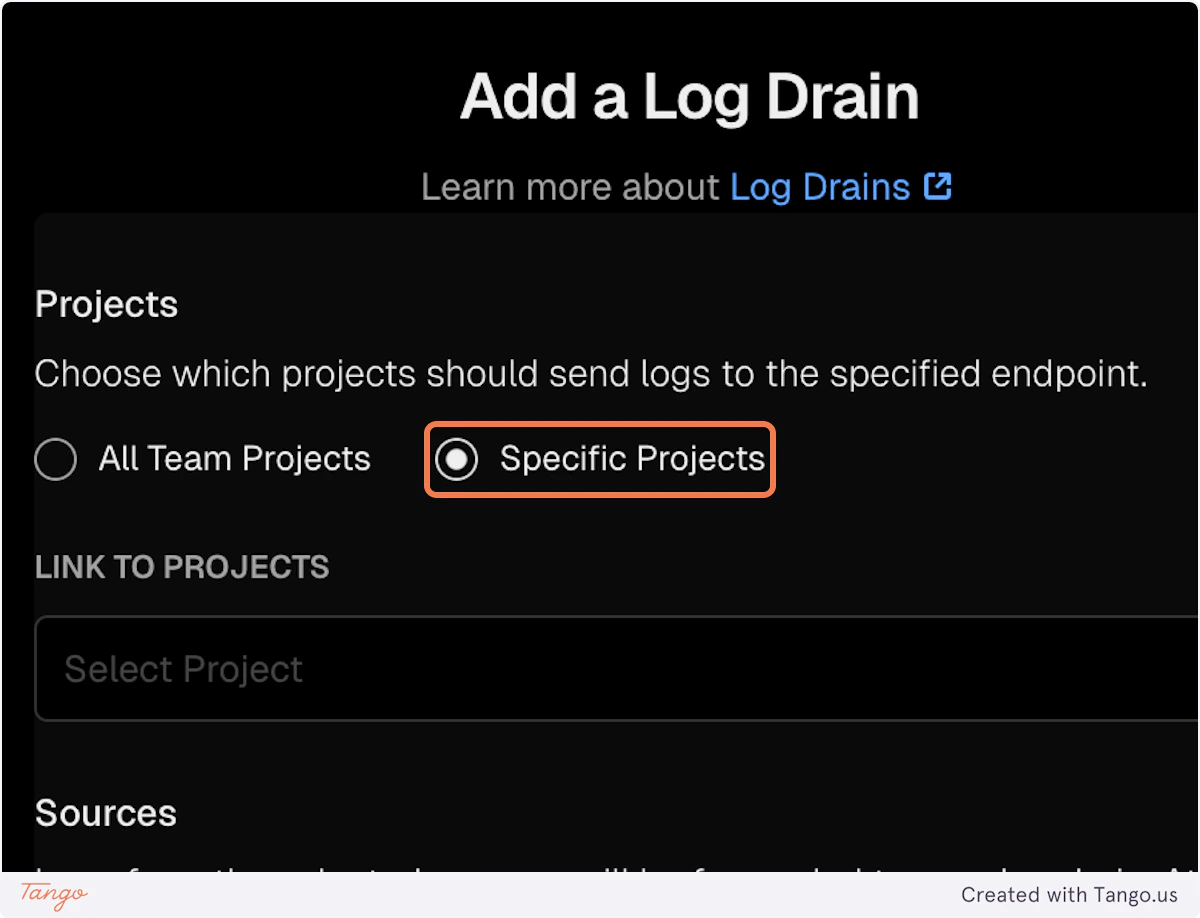
### 8. Select Specific Projects

<img src="https://mintcdn.com/writesonic/JCO6iEy5GoxeFx_e/images/docs/workflows/22177c05-460e-4394-a998-63c424f04747/steps/9f2d816c-aedc-4b29-a30e-6eae42555bf9/52e595ec-5d22-43c3-93c8-5d4205783685.png?fit=max&auto=format&n=JCO6iEy5GoxeFx_e&q=85&s=9a34b8c9dcdd6e8bfdd66d4a5f676cac" alt="Step 8 screenshot" width="1200" height="918" data-path="images/docs/workflows/22177c05-460e-4394-a998-63c424f04747/steps/9f2d816c-aedc-4b29-a30e-6eae42555bf9/52e595ec-5d22-43c3-93c8-5d4205783685.png" />

### 9. Select the project for which you want to turn on the AI Analytics
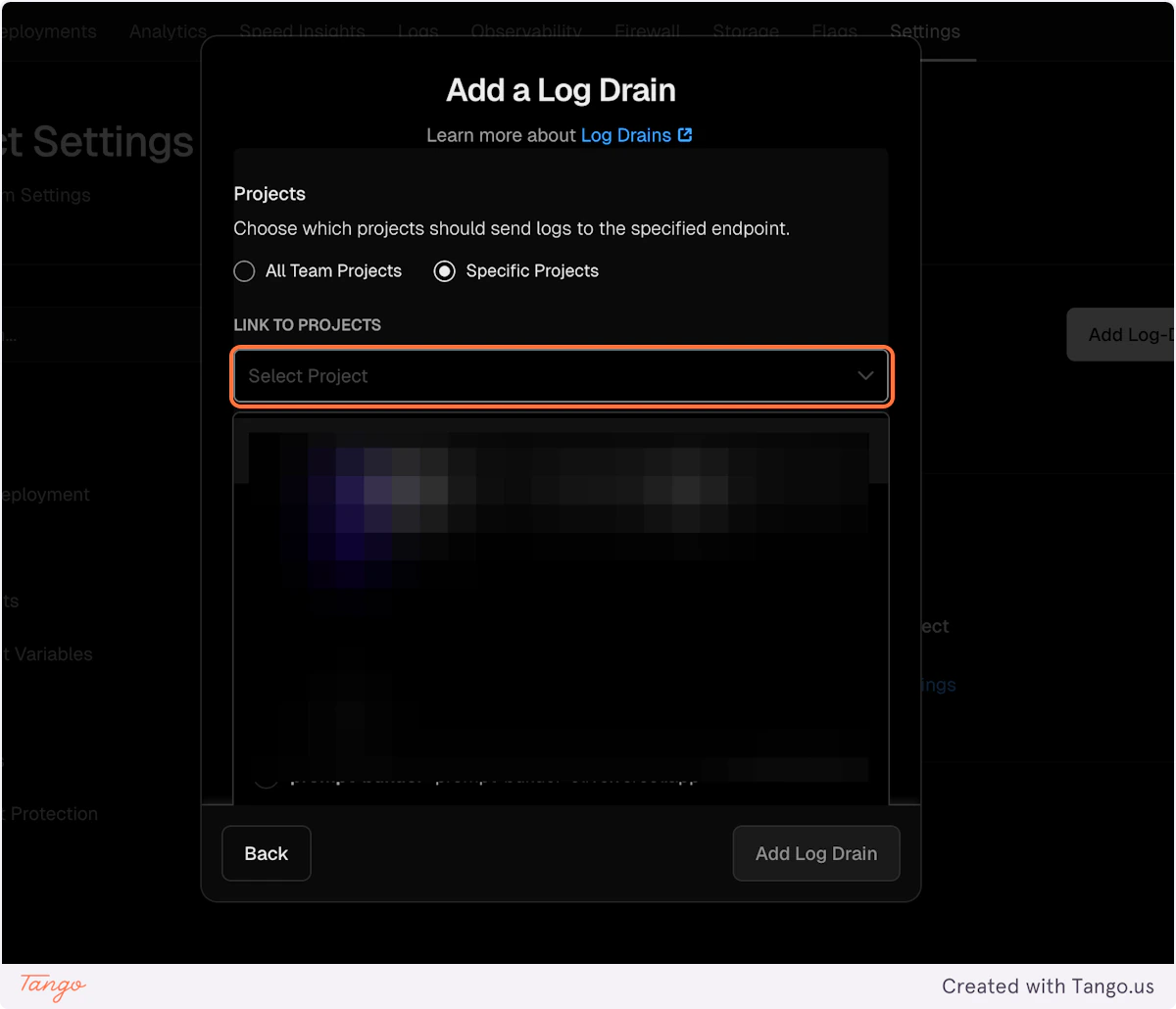
<img src="https://mintcdn.com/writesonic/JCO6iEy5GoxeFx_e/images/docs/workflows/22177c05-460e-4394-a998-63c424f04747/steps/c8b5b7d9-cf3e-4bcd-b49b-0650ba58347d/87aa9395-83ba-465c-a71e-0b615a8b2e46.png?fit=max&auto=format&n=JCO6iEy5GoxeFx_e&q=85&s=a9d062f331f490d7c8adcca5504f3592" alt="Step 9 screenshot" width="1200" height="1030" data-path="images/docs/workflows/22177c05-460e-4394-a998-63c424f04747/steps/c8b5b7d9-cf3e-4bcd-b49b-0650ba58347d/87aa9395-83ba-465c-a71e-0b615a8b2e46.png" />

### 10. Select "Static" and "Function" as Sources
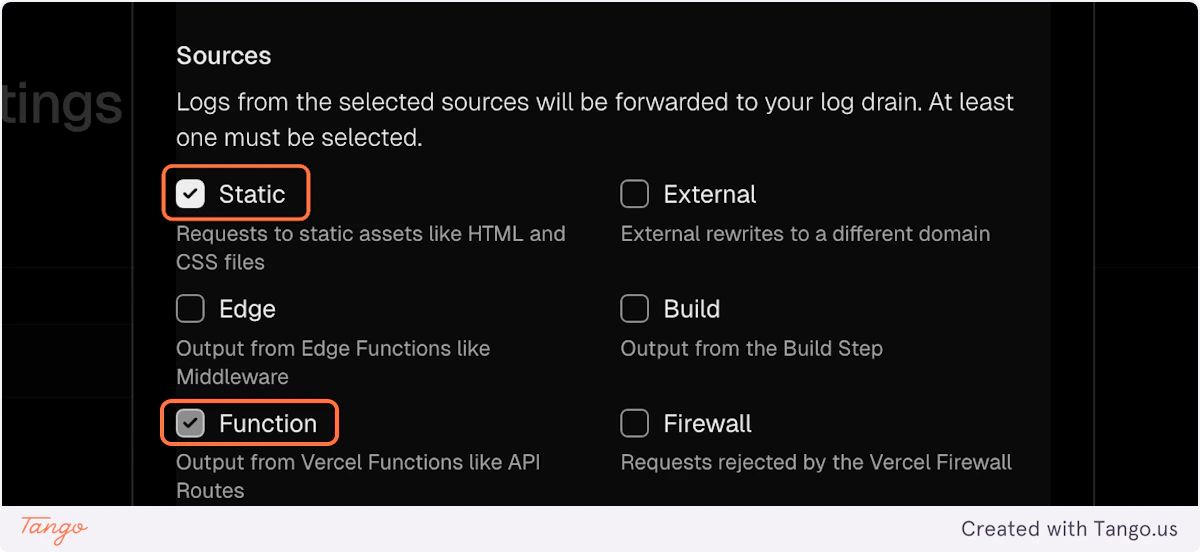
<img src="https://mintcdn.com/writesonic/JCO6iEy5GoxeFx_e/images/docs/workflows/22177c05-460e-4394-a998-63c424f04747/steps/ee6d6b5d-17a5-40c8-a410-d164a5678efa/235ebe5d-2281-4874-9587-6e1d0012e74c.png?fit=max&auto=format&n=JCO6iEy5GoxeFx_e&q=85&s=101d3a7553233803a7f5619a17871f44" alt="Step 10 screenshot" width="1200" height="552" data-path="images/docs/workflows/22177c05-460e-4394-a998-63c424f04747/steps/ee6d6b5d-17a5-40c8-a410-d164a5678efa/235ebe5d-2281-4874-9587-6e1d0012e74c.png" />

### 11. Select Production as environment
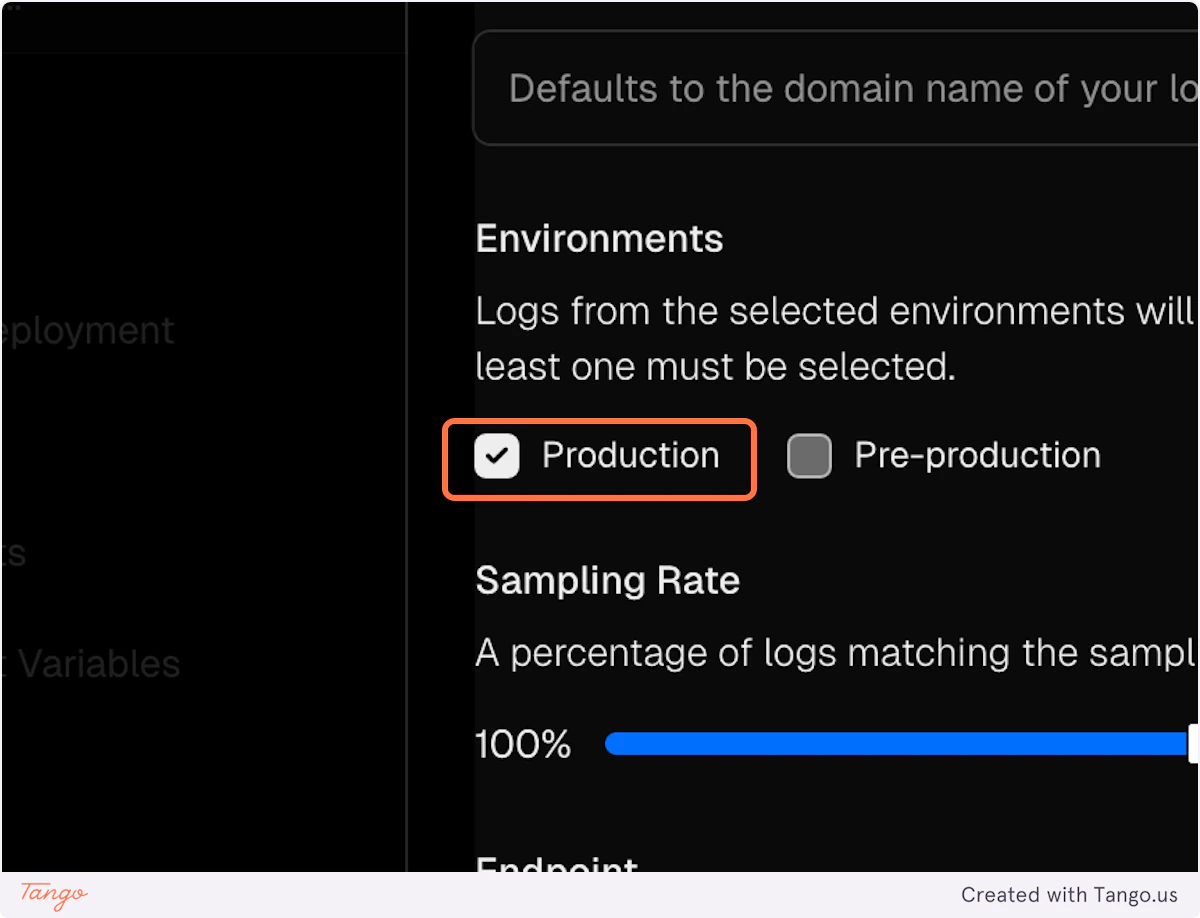
<img src="https://mintcdn.com/writesonic/JCO6iEy5GoxeFx_e/images/docs/workflows/22177c05-460e-4394-a998-63c424f04747/steps/e9ecfc7d-b44c-4992-89aa-57594a2946d2/808ab22a-4bca-4198-8400-2457dbdb21fe.png?fit=max&auto=format&n=JCO6iEy5GoxeFx_e&q=85&s=143384dbfd4b9687f813c2d24b2f09a3" alt="Step 11 screenshot" width="1200" height="918" data-path="images/docs/workflows/22177c05-460e-4394-a998-63c424f04747/steps/e9ecfc7d-b44c-4992-89aa-57594a2946d2/808ab22a-4bca-4198-8400-2457dbdb21fe.png" />

## [Writesonic](https://app.writesonic.com/geo/ai-traffic-analytics)

### 12. Copy the Endpoint URL from Writesonic
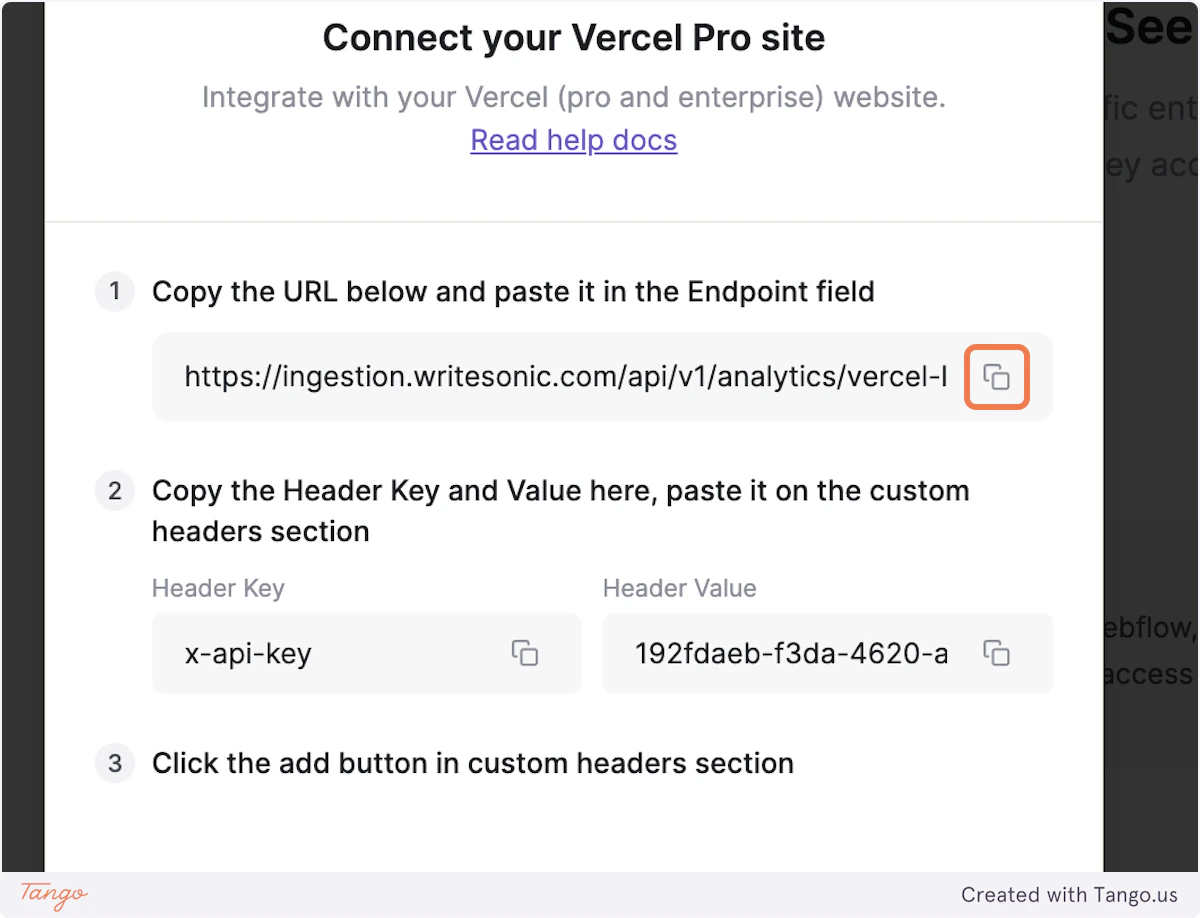
<img src="https://mintcdn.com/writesonic/JCO6iEy5GoxeFx_e/images/docs/workflows/22177c05-460e-4394-a998-63c424f04747/steps/cb49cffb-8b4f-4fcc-a096-7fa871be1e59/955439c6-5648-46b4-98dc-d3d0d6958b37.png?fit=max&auto=format&n=JCO6iEy5GoxeFx_e&q=85&s=1d13f6e31e858d7064eb63d3951d6117" alt="Step 12 screenshot" width="1200" height="918" data-path="images/docs/workflows/22177c05-460e-4394-a998-63c424f04747/steps/cb49cffb-8b4f-4fcc-a096-7fa871be1e59/955439c6-5648-46b4-98dc-d3d0d6958b37.png" />

## [Vercel](https://vercel.com/)

### 13. Paste the copied endpoint url in input box
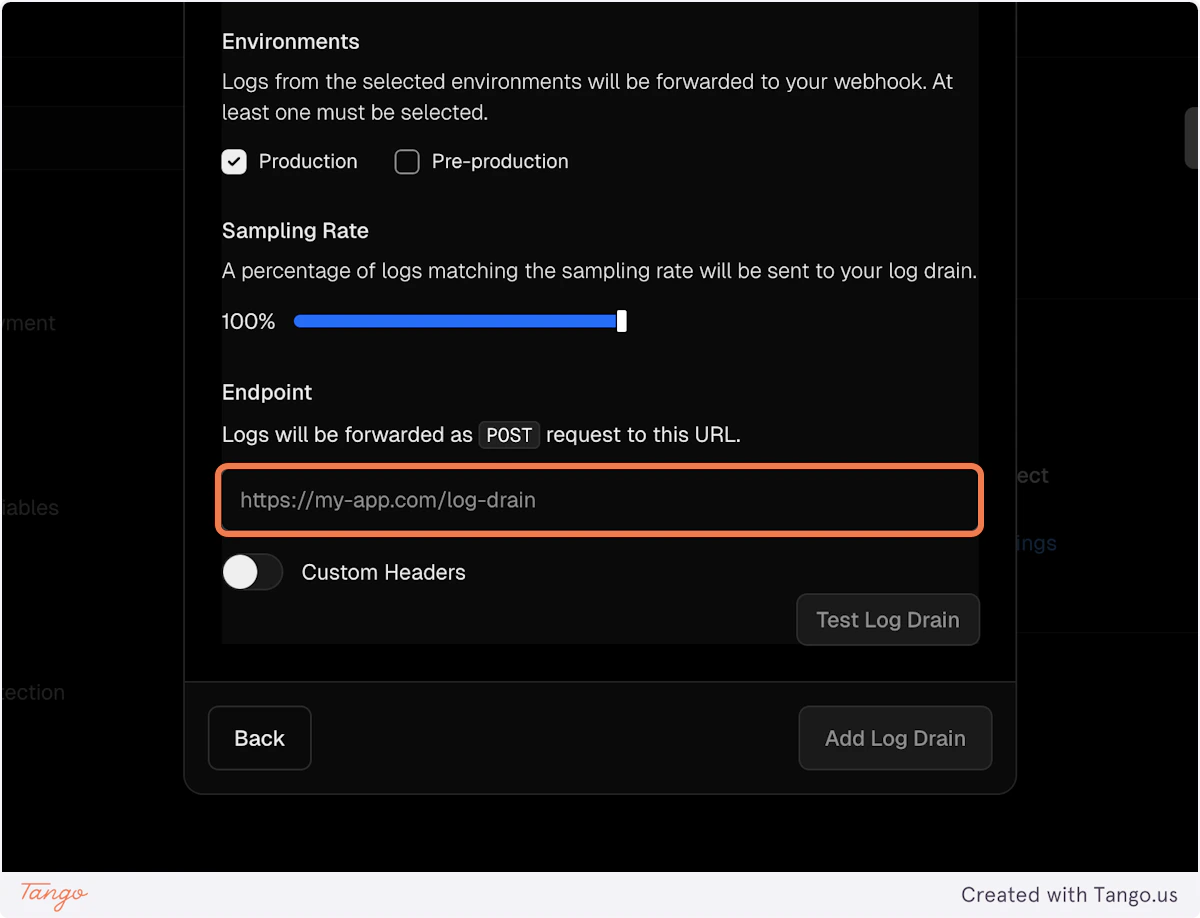
<img src="https://mintcdn.com/writesonic/JCO6iEy5GoxeFx_e/images/docs/workflows/22177c05-460e-4394-a998-63c424f04747/steps/20c3ac26-04e4-4902-b68a-a3e17cd721d8/5a470f25-a2a9-44ea-8246-103d3fd5c48c.png?fit=max&auto=format&n=JCO6iEy5GoxeFx_e&q=85&s=4eef9f748d1be7eb3377fd9cda9f7844" alt="Step 13 screenshot" width="1200" height="918" data-path="images/docs/workflows/22177c05-460e-4394-a998-63c424f04747/steps/20c3ac26-04e4-4902-b68a-a3e17cd721d8/5a470f25-a2a9-44ea-8246-103d3fd5c48c.png" />

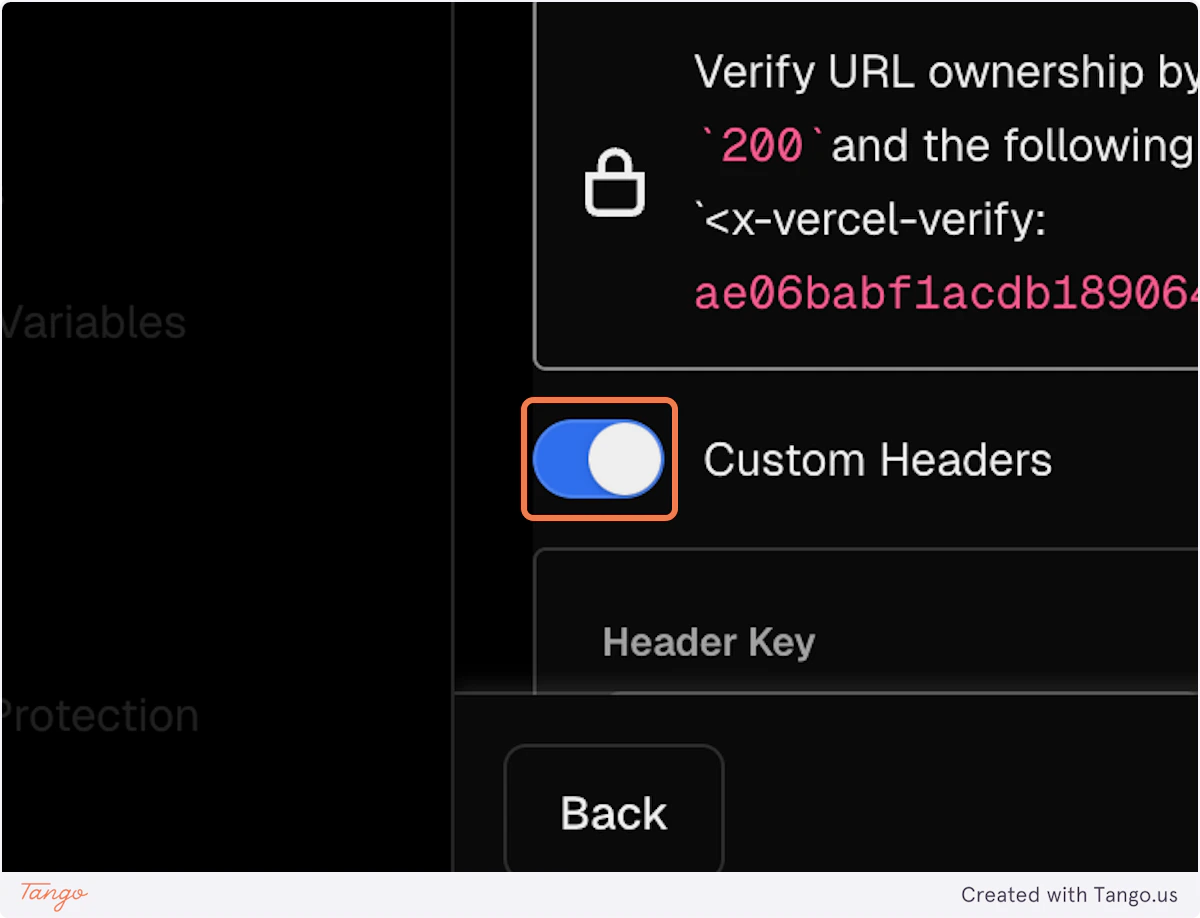
### 14. Turn on the Custom Headers

<img src="https://mintcdn.com/writesonic/JCO6iEy5GoxeFx_e/images/docs/workflows/22177c05-460e-4394-a998-63c424f04747/steps/3446f661-5388-4fc6-b402-7b554786fc14/2bca0152-9d9d-4e07-a195-a1c7dd1114cd.png?fit=max&auto=format&n=JCO6iEy5GoxeFx_e&q=85&s=9165b0befd92c871085ceb46edcd900b" alt="Step 14 screenshot" width="1200" height="918" data-path="images/docs/workflows/22177c05-460e-4394-a998-63c424f04747/steps/3446f661-5388-4fc6-b402-7b554786fc14/2bca0152-9d9d-4e07-a195-a1c7dd1114cd.png" />

## [Writesonic](https://app.writesonic.com/geo/ai-traffic-analytics)

### 15. Copy the Header Key from Writesonic
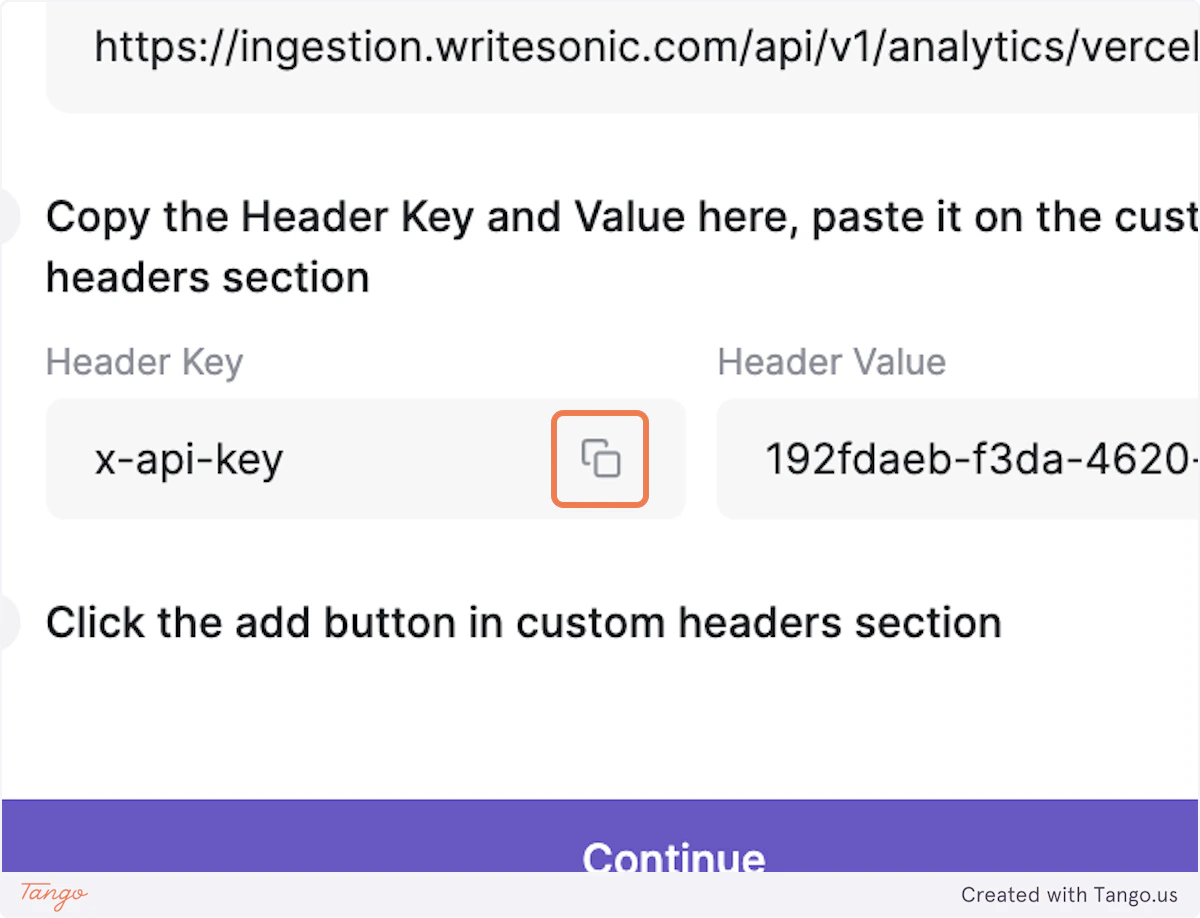
<img src="https://mintcdn.com/writesonic/JCO6iEy5GoxeFx_e/images/docs/workflows/22177c05-460e-4394-a998-63c424f04747/steps/60453dda-eb73-49af-b713-7b2d3d3fc160/650c736b-bc0a-462e-99b8-f3d77e959570.png?fit=max&auto=format&n=JCO6iEy5GoxeFx_e&q=85&s=61754690797dadd3ae3f1fc2d346f73b" alt="Step 15 screenshot" width="1200" height="918" data-path="images/docs/workflows/22177c05-460e-4394-a998-63c424f04747/steps/60453dda-eb73-49af-b713-7b2d3d3fc160/650c736b-bc0a-462e-99b8-f3d77e959570.png" />

## [Vercel](https://vercel.com/)

### 16. Paste the copied Header Key in Vercel
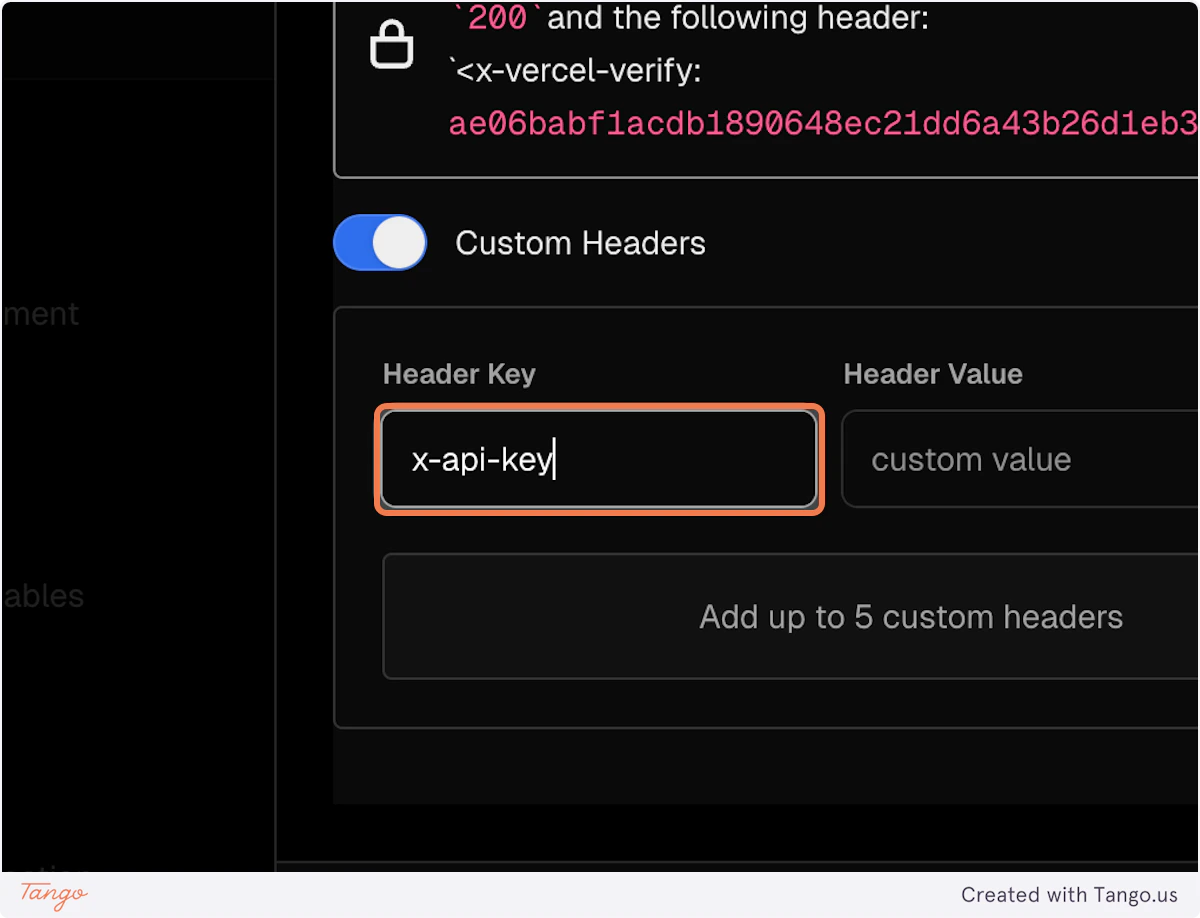
<img src="https://mintcdn.com/writesonic/JCO6iEy5GoxeFx_e/images/docs/workflows/22177c05-460e-4394-a998-63c424f04747/steps/91a74bf5-caf2-49e4-83bb-235be08ddf93/ea2bf39f-ad89-4971-a2d9-e3fb2ddbe316.png?fit=max&auto=format&n=JCO6iEy5GoxeFx_e&q=85&s=54a23b44de5bb9fb014f72e0b9898dc5" alt="Step 16 screenshot" width="1200" height="918" data-path="images/docs/workflows/22177c05-460e-4394-a998-63c424f04747/steps/91a74bf5-caf2-49e4-83bb-235be08ddf93/ea2bf39f-ad89-4971-a2d9-e3fb2ddbe316.png" />

## [Writesonic](https://app.writesonic.com/geo/ai-traffic-analytics)

### 17. Copy the Header Value from Writesonic
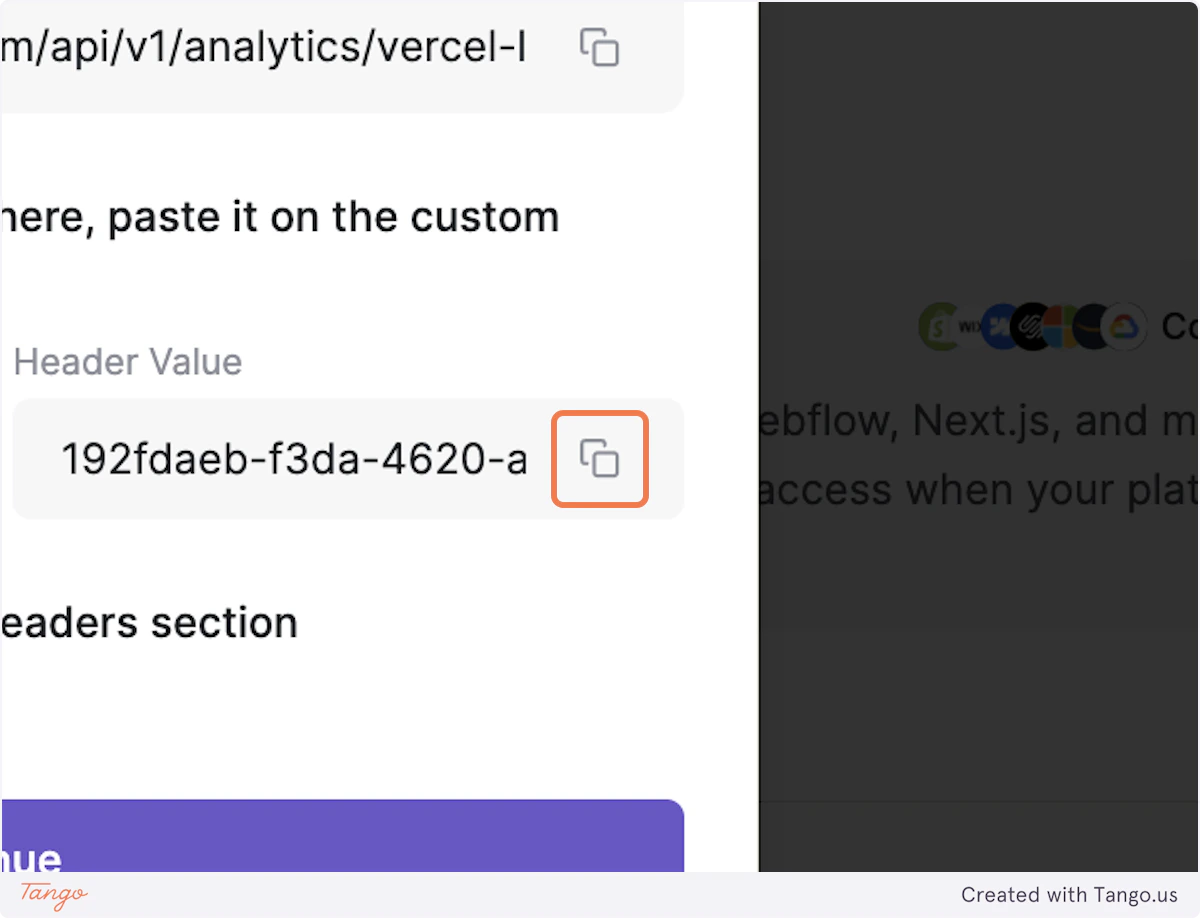
<img src="https://mintcdn.com/writesonic/JCO6iEy5GoxeFx_e/images/docs/workflows/22177c05-460e-4394-a998-63c424f04747/steps/80f833d0-516b-42d4-b8d7-2ba1b74d6733/e915c661-b1fe-4a08-9cf3-40af8ac5bfdf.png?fit=max&auto=format&n=JCO6iEy5GoxeFx_e&q=85&s=6673a435df1536960b9ce021e989f0f8" alt="Step 17 screenshot" width="1200" height="918" data-path="images/docs/workflows/22177c05-460e-4394-a998-63c424f04747/steps/80f833d0-516b-42d4-b8d7-2ba1b74d6733/e915c661-b1fe-4a08-9cf3-40af8ac5bfdf.png" />

## [Vercel](https://vercel.com/)

### 18. Paste the copied Header Value in Vercel
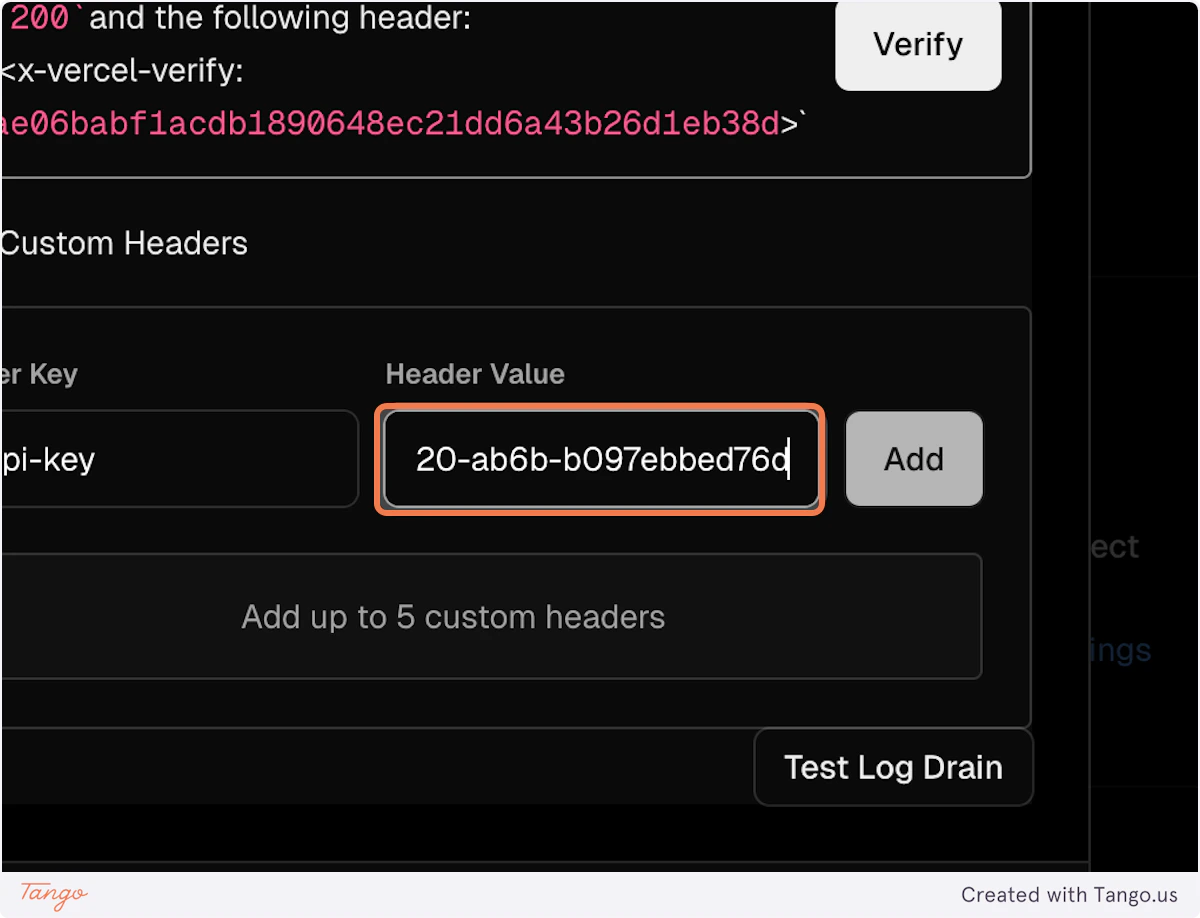
<img src="https://mintcdn.com/writesonic/JCO6iEy5GoxeFx_e/images/docs/workflows/22177c05-460e-4394-a998-63c424f04747/steps/222087cb-8bee-489e-8bc7-94289e904754/5891c5a9-fc65-4fcf-b4b9-d6fb968184b1.png?fit=max&auto=format&n=JCO6iEy5GoxeFx_e&q=85&s=39c7c722a9b8451e011815cbf96ef993" alt="Step 18 screenshot" width="1200" height="918" data-path="images/docs/workflows/22177c05-460e-4394-a998-63c424f04747/steps/222087cb-8bee-489e-8bc7-94289e904754/5891c5a9-fc65-4fcf-b4b9-d6fb968184b1.png" />

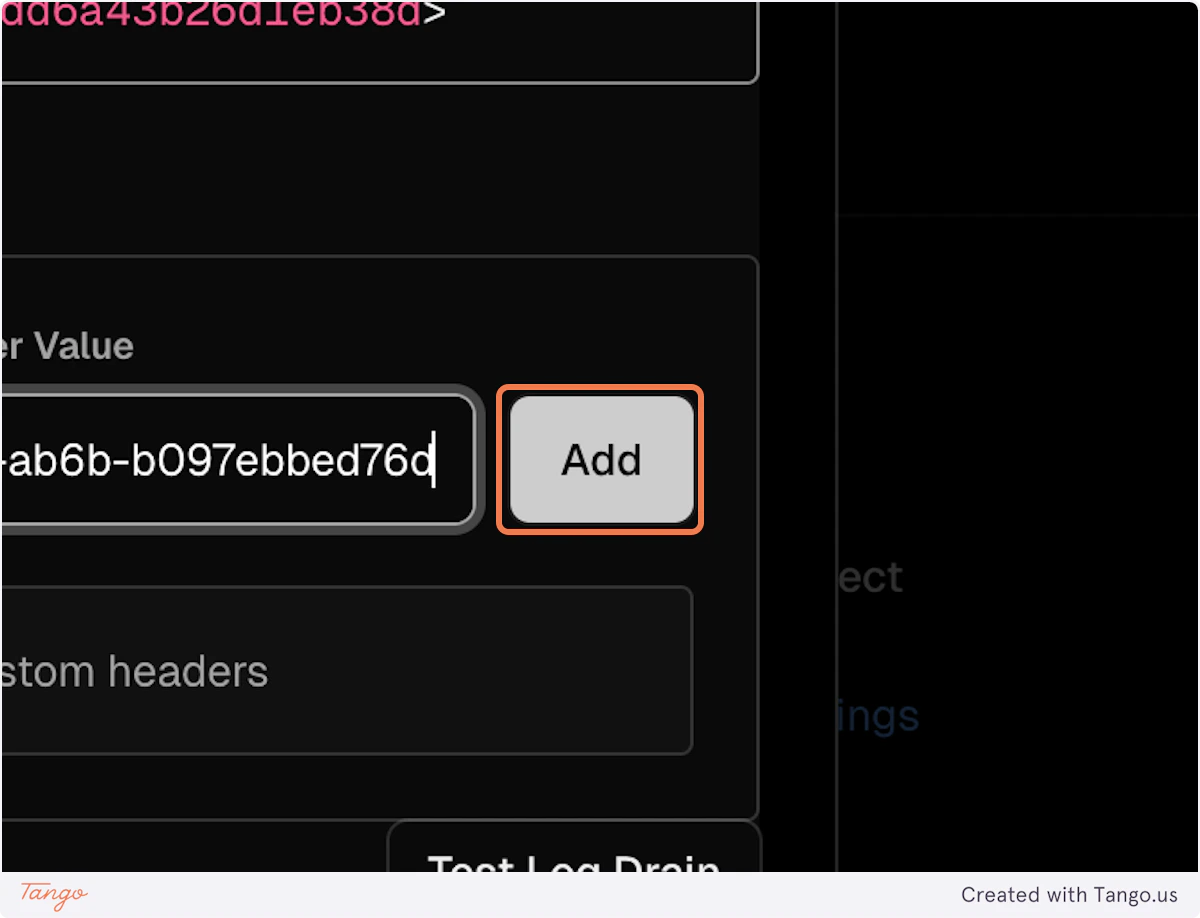
### 19. Click on Add

<img src="https://mintcdn.com/writesonic/JCO6iEy5GoxeFx_e/images/docs/workflows/22177c05-460e-4394-a998-63c424f04747/steps/4d3ca8c0-4615-432c-a4a0-fc9ced31948d/0c4e12aa-3671-4254-b9d1-323bb1f90674.png?fit=max&auto=format&n=JCO6iEy5GoxeFx_e&q=85&s=37ebba00bc6ae3a4d3a58a9781db063e" alt="Step 19 screenshot" width="1200" height="918" data-path="images/docs/workflows/22177c05-460e-4394-a998-63c424f04747/steps/4d3ca8c0-4615-432c-a4a0-fc9ced31948d/0c4e12aa-3671-4254-b9d1-323bb1f90674.png" />

### 20. Copy the Vercel x-vercel-verify header
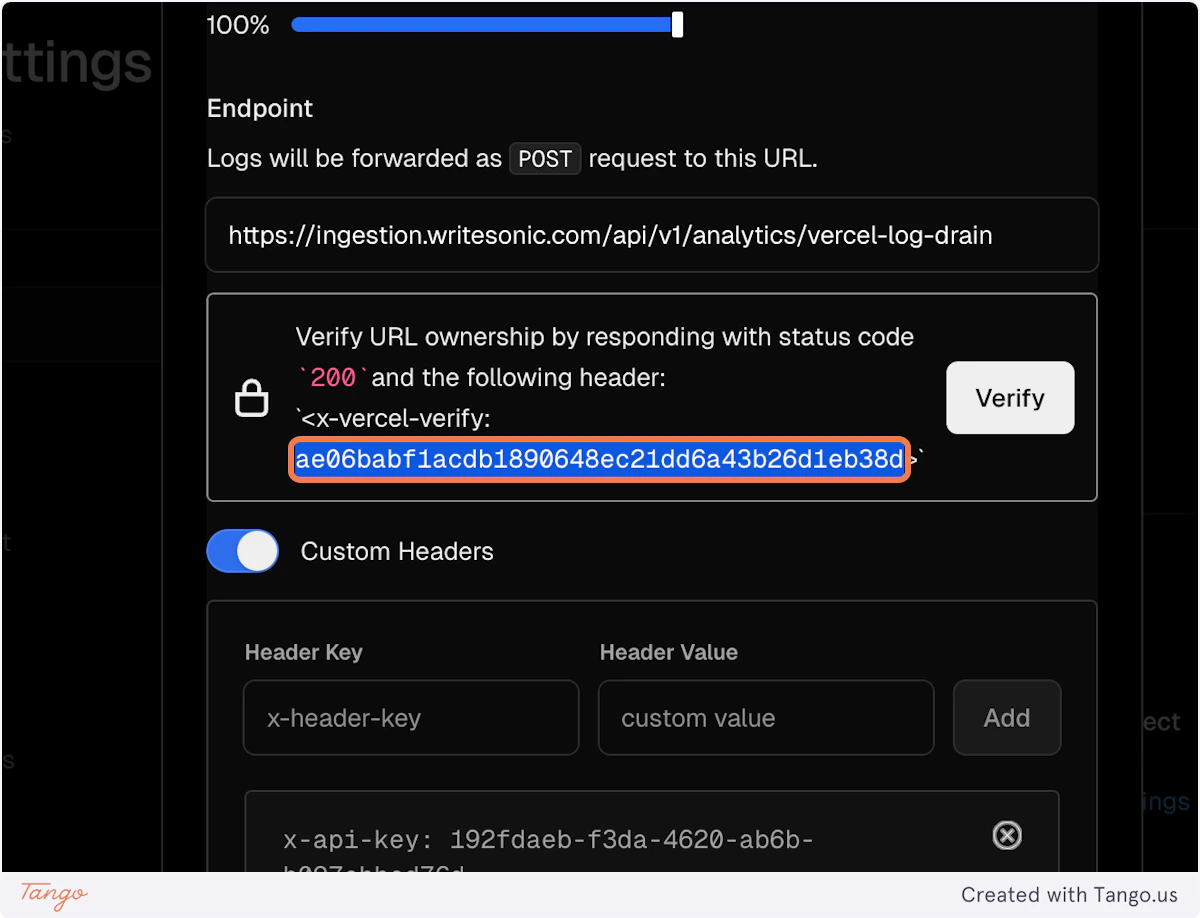
<img src="https://mintcdn.com/writesonic/JCO6iEy5GoxeFx_e/images/docs/workflows/22177c05-460e-4394-a998-63c424f04747/steps/2bcb138b-5a66-44b4-9b32-4596b53554d2/b7a7aa86-90d4-488f-9c40-a702df1cea21.png?fit=max&auto=format&n=JCO6iEy5GoxeFx_e&q=85&s=eaef2ceaf5b0f848150d885a6d487885" alt="Step 20 screenshot" width="1200" height="918" data-path="images/docs/workflows/22177c05-460e-4394-a998-63c424f04747/steps/2bcb138b-5a66-44b4-9b32-4596b53554d2/b7a7aa86-90d4-488f-9c40-a702df1cea21.png" />

## [Writesonic](https://app.writesonic.com/geo/ai-traffic-analytics)

### 21. Click on Continue
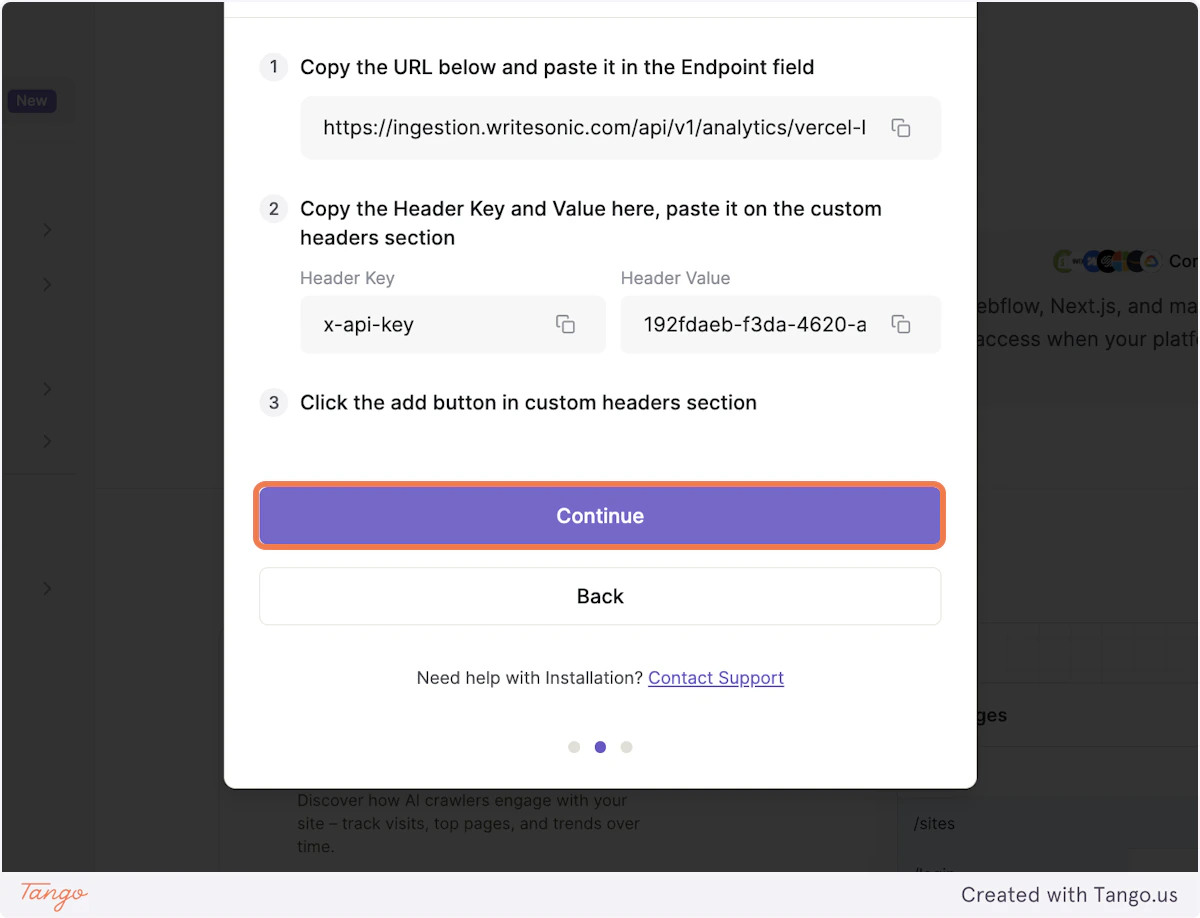
<img src="https://mintcdn.com/writesonic/JCO6iEy5GoxeFx_e/images/docs/workflows/22177c05-460e-4394-a998-63c424f04747/steps/a45154c4-304a-440a-8636-5d50e142a9be/f6ed125e-edb0-4876-ae3e-9f239c5d2341.png?fit=max&auto=format&n=JCO6iEy5GoxeFx_e&q=85&s=1e46f998d0a7dbb9711d34101564bdca" alt="Step 21 screenshot" width="1200" height="918" data-path="images/docs/workflows/22177c05-460e-4394-a998-63c424f04747/steps/a45154c4-304a-440a-8636-5d50e142a9be/f6ed125e-edb0-4876-ae3e-9f239c5d2341.png" />

### 22. Paste the copied Vercel x-vercel-verify header in the input box
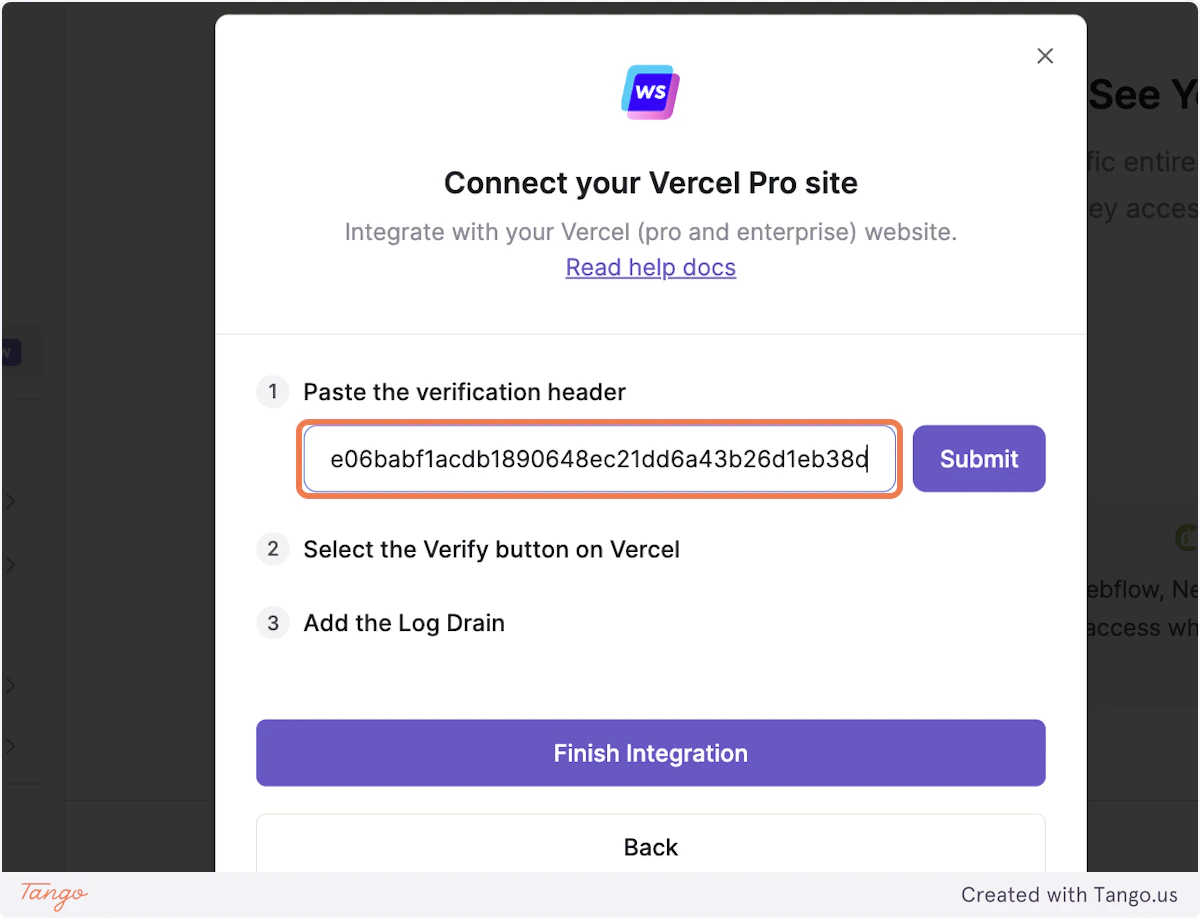
<img src="https://mintcdn.com/writesonic/JCO6iEy5GoxeFx_e/images/docs/workflows/22177c05-460e-4394-a998-63c424f04747/steps/39904ad8-a1e9-4e7d-96d5-c1827a262e07/bd85417a-9b83-45b1-8a2c-ec5bfa26b58f.png?fit=max&auto=format&n=JCO6iEy5GoxeFx_e&q=85&s=be62542e74bd386b3cf8d4c32f5d967c" alt="Step 22 screenshot" width="1200" height="918" data-path="images/docs/workflows/22177c05-460e-4394-a998-63c424f04747/steps/39904ad8-a1e9-4e7d-96d5-c1827a262e07/bd85417a-9b83-45b1-8a2c-ec5bfa26b58f.png" />

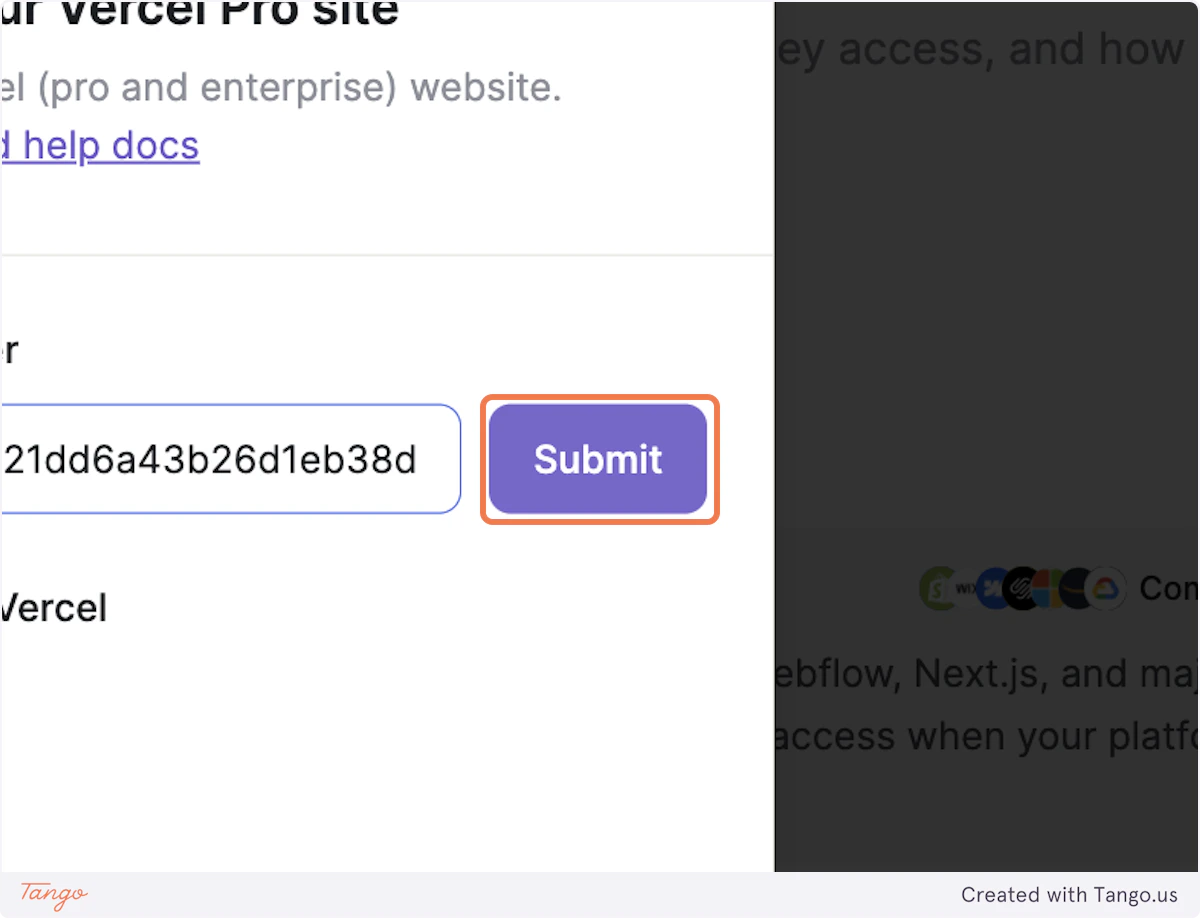
### 23. Click on Submit

<img src="https://mintcdn.com/writesonic/JCO6iEy5GoxeFx_e/images/docs/workflows/22177c05-460e-4394-a998-63c424f04747/steps/a512953b-7380-47e0-9545-fa9590143e91/ed87d4f0-4c96-448d-b3cb-9a5ad91f4490.png?fit=max&auto=format&n=JCO6iEy5GoxeFx_e&q=85&s=6902a626c8017e7e0dd010fb6d0d155c" alt="Step 23 screenshot" width="1200" height="918" data-path="images/docs/workflows/22177c05-460e-4394-a998-63c424f04747/steps/a512953b-7380-47e0-9545-fa9590143e91/ed87d4f0-4c96-448d-b3cb-9a5ad91f4490.png" />

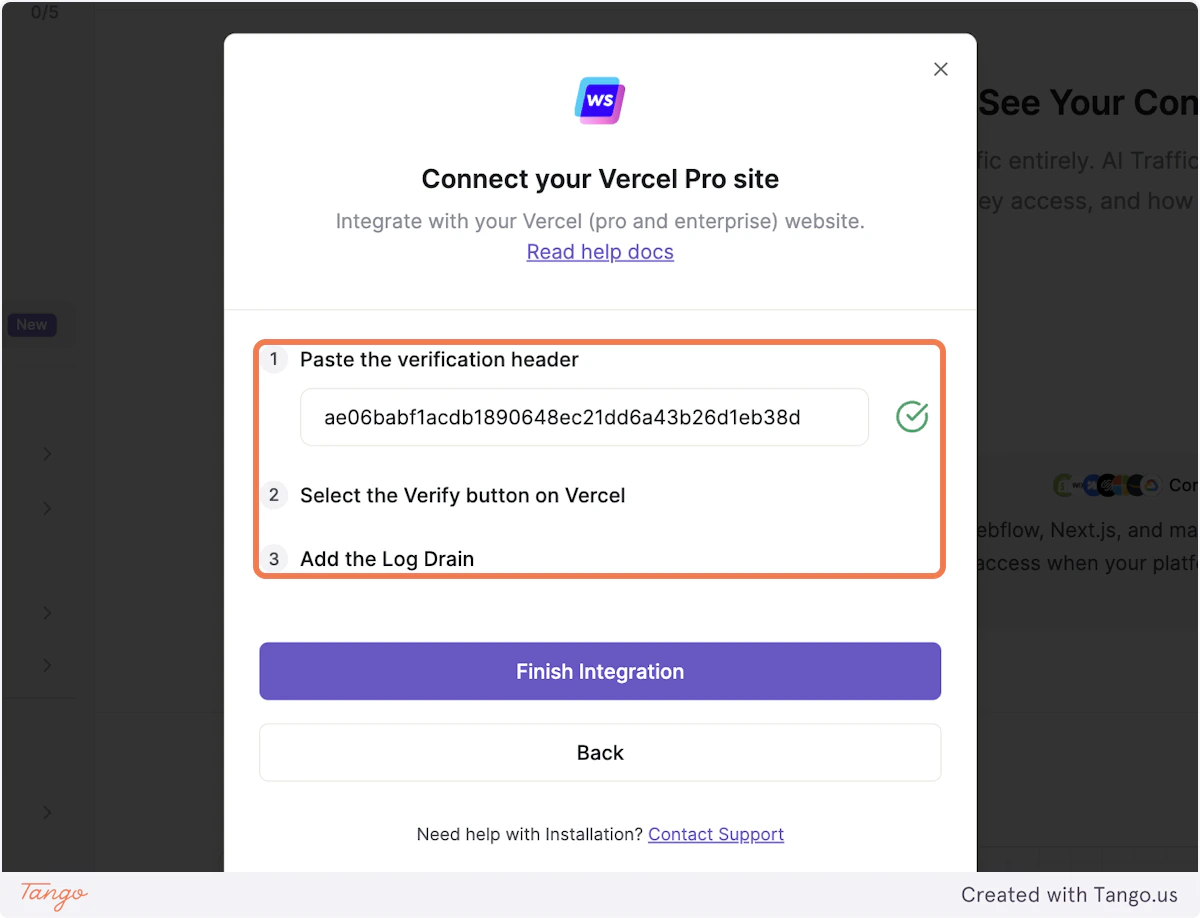
### 24. After submitting you will get a green tick, indicating the header has been saved
<img src="https://mintcdn.com/writesonic/JCO6iEy5GoxeFx_e/images/docs/workflows/22177c05-460e-4394-a998-63c424f04747/steps/a67c075c-acfb-4c23-81ca-b8c0b90e28f0/944b5e9e-7302-401f-992b-9d38a1ea7fc6.png?fit=max&auto=format&n=JCO6iEy5GoxeFx_e&q=85&s=8ce168847c389a7923939e40831e608b" alt="Step 24 screenshot" width="1200" height="918" data-path="images/docs/workflows/22177c05-460e-4394-a998-63c424f04747/steps/a67c075c-acfb-4c23-81ca-b8c0b90e28f0/944b5e9e-7302-401f-992b-9d38a1ea7fc6.png" />

## [Vercel](https://vercel.com/)

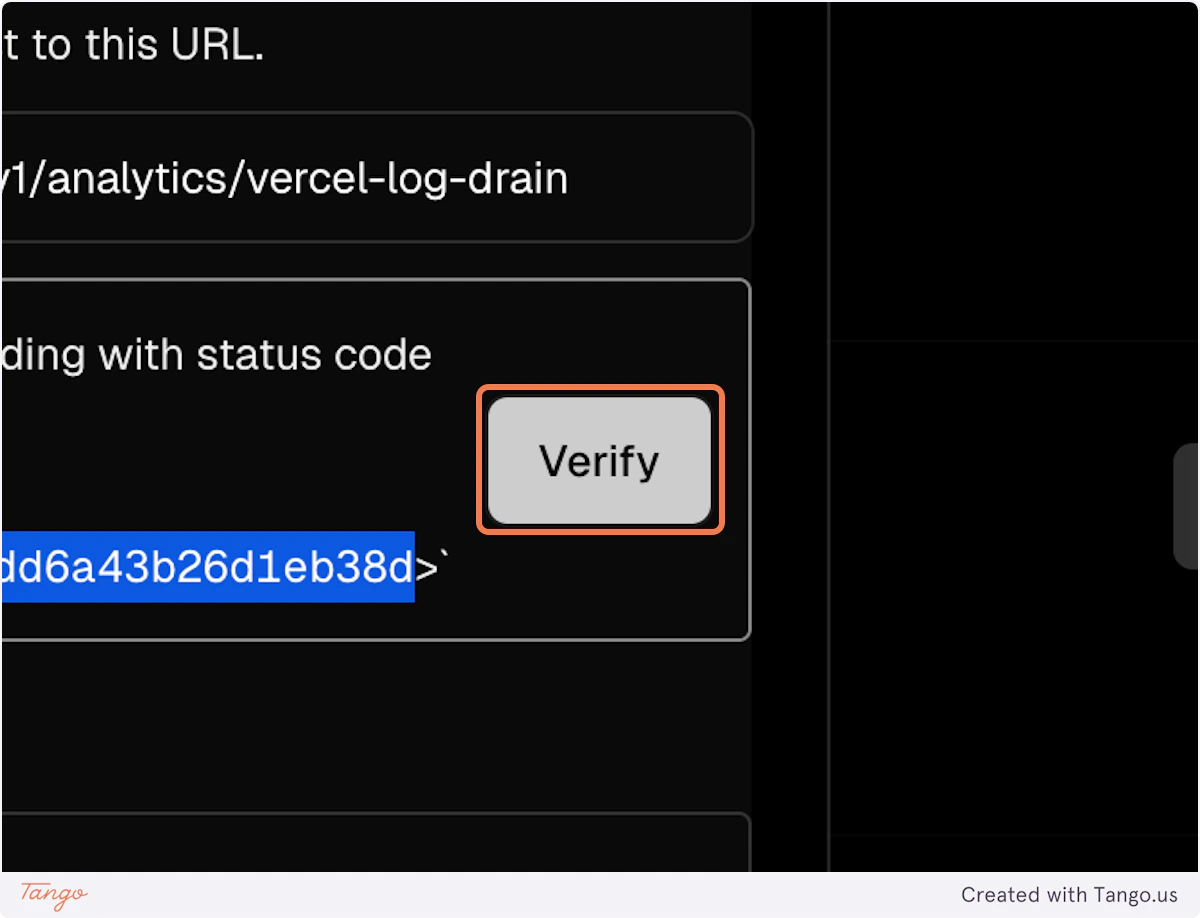
### 25. Click on Verify
<img src="https://mintcdn.com/writesonic/JCO6iEy5GoxeFx_e/images/docs/workflows/22177c05-460e-4394-a998-63c424f04747/steps/7eddb157-c18a-43bd-bb4b-8806521f4cdb/5f3d22a5-9d00-4de6-8d63-8a12ecff89dd.png?fit=max&auto=format&n=JCO6iEy5GoxeFx_e&q=85&s=04a29848f19f372be90b1747211bfa10" alt="Step 25 screenshot" width="1200" height="918" data-path="images/docs/workflows/22177c05-460e-4394-a998-63c424f04747/steps/7eddb157-c18a-43bd-bb4b-8806521f4cdb/5f3d22a5-9d00-4de6-8d63-8a12ecff89dd.png" />

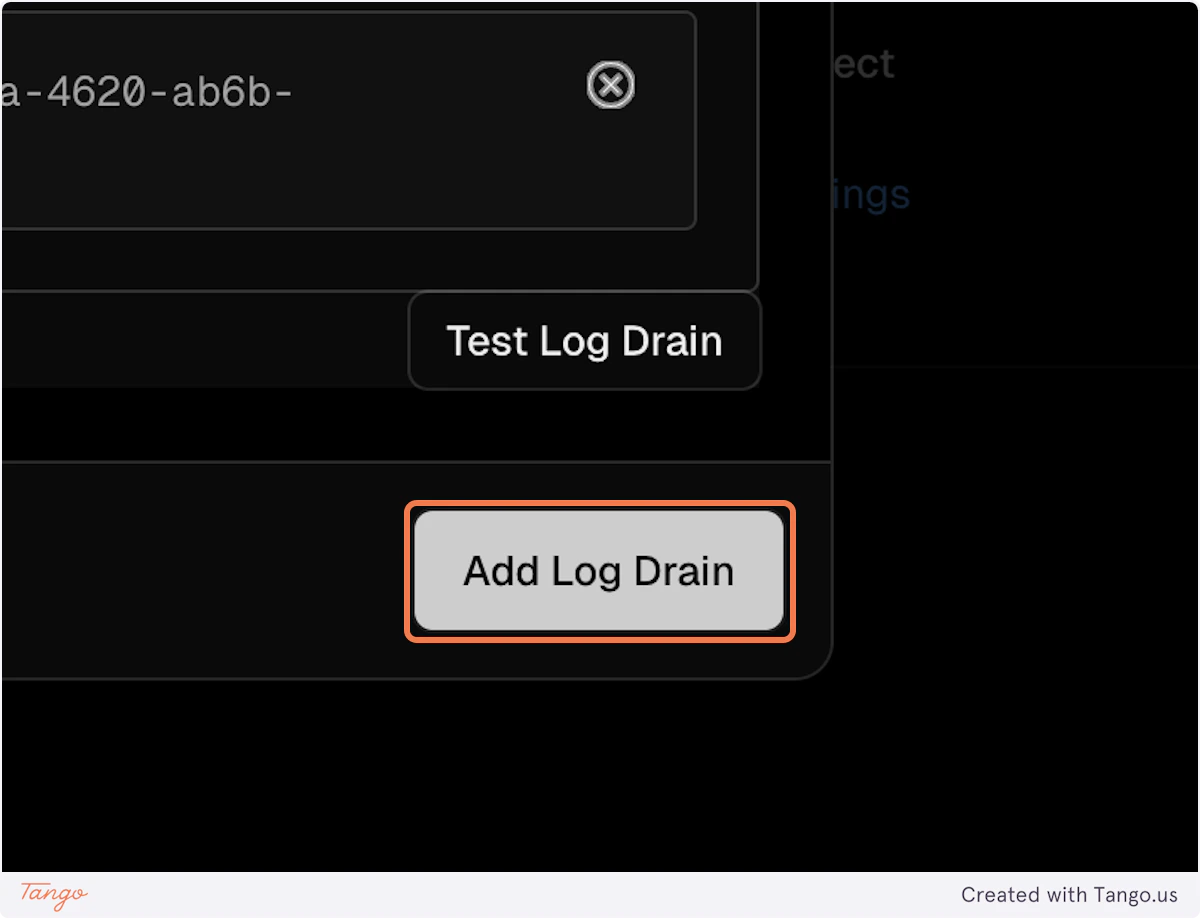
### 26. Once verified on Vercel, click on Add Log Drain
<img src="https://mintcdn.com/writesonic/JCO6iEy5GoxeFx_e/images/docs/workflows/22177c05-460e-4394-a998-63c424f04747/steps/63b06a00-11dd-4878-bc87-6058567a28de/2564f73a-6e15-4e07-a276-1d4e6389b1cc.png?fit=max&auto=format&n=JCO6iEy5GoxeFx_e&q=85&s=14bbf52503ab88d70cdc9ad7cfc909c6" alt="Step 26 screenshot" width="1200" height="918" data-path="images/docs/workflows/22177c05-460e-4394-a998-63c424f04747/steps/63b06a00-11dd-4878-bc87-6058567a28de/2564f73a-6e15-4e07-a276-1d4e6389b1cc.png" />

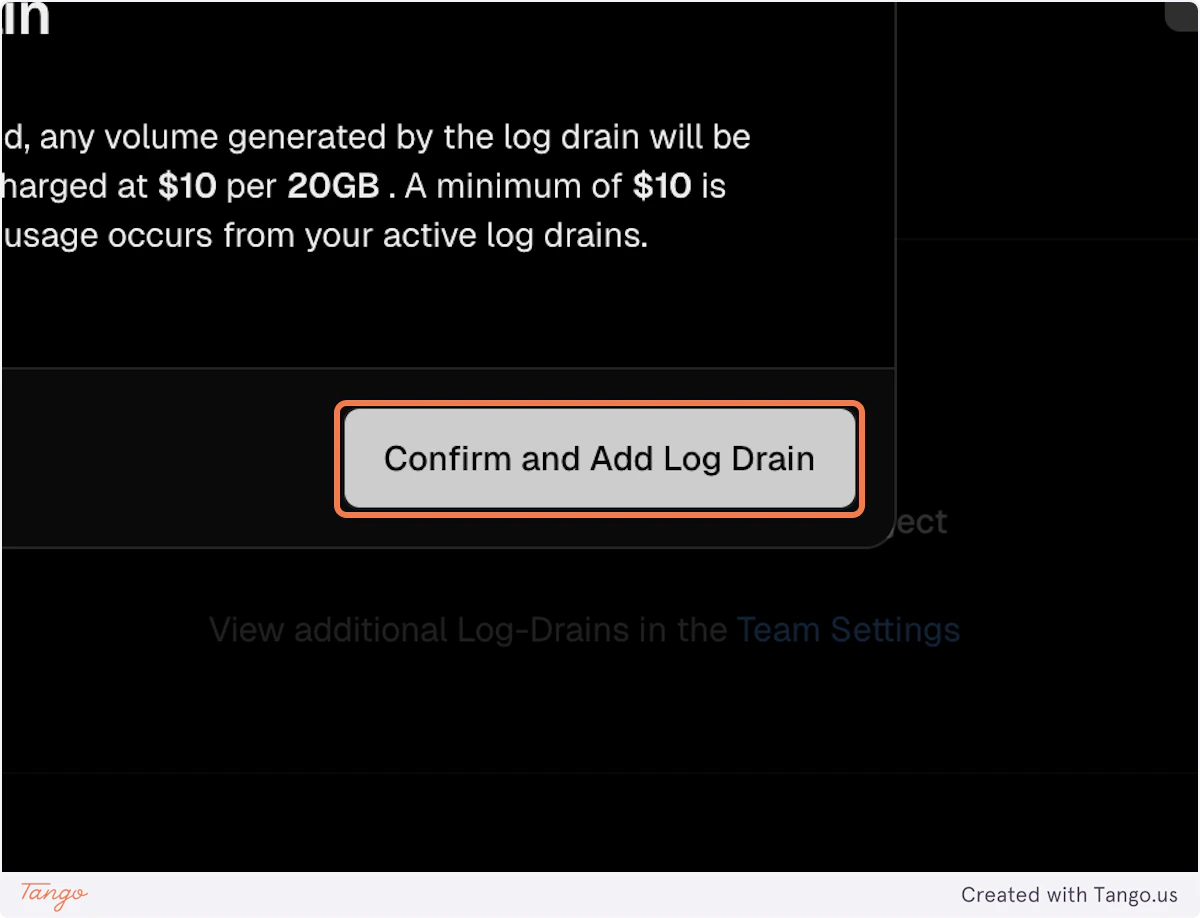
### 27. Click on Confirm and Add Log Drain
<img src="https://mintcdn.com/writesonic/JCO6iEy5GoxeFx_e/images/docs/workflows/22177c05-460e-4394-a998-63c424f04747/steps/c9afd4d7-d1ac-490f-80c3-6dbf731073a1/5196dd11-492f-4b1d-ad28-602bb1bb1a9a.png?fit=max&auto=format&n=JCO6iEy5GoxeFx_e&q=85&s=ef825bbc2e4e020f8bcedb7ce2f80fcb" alt="Step 27 screenshot" width="1200" height="918" data-path="images/docs/workflows/22177c05-460e-4394-a998-63c424f04747/steps/c9afd4d7-d1ac-490f-80c3-6dbf731073a1/5196dd11-492f-4b1d-ad28-602bb1bb1a9a.png" />

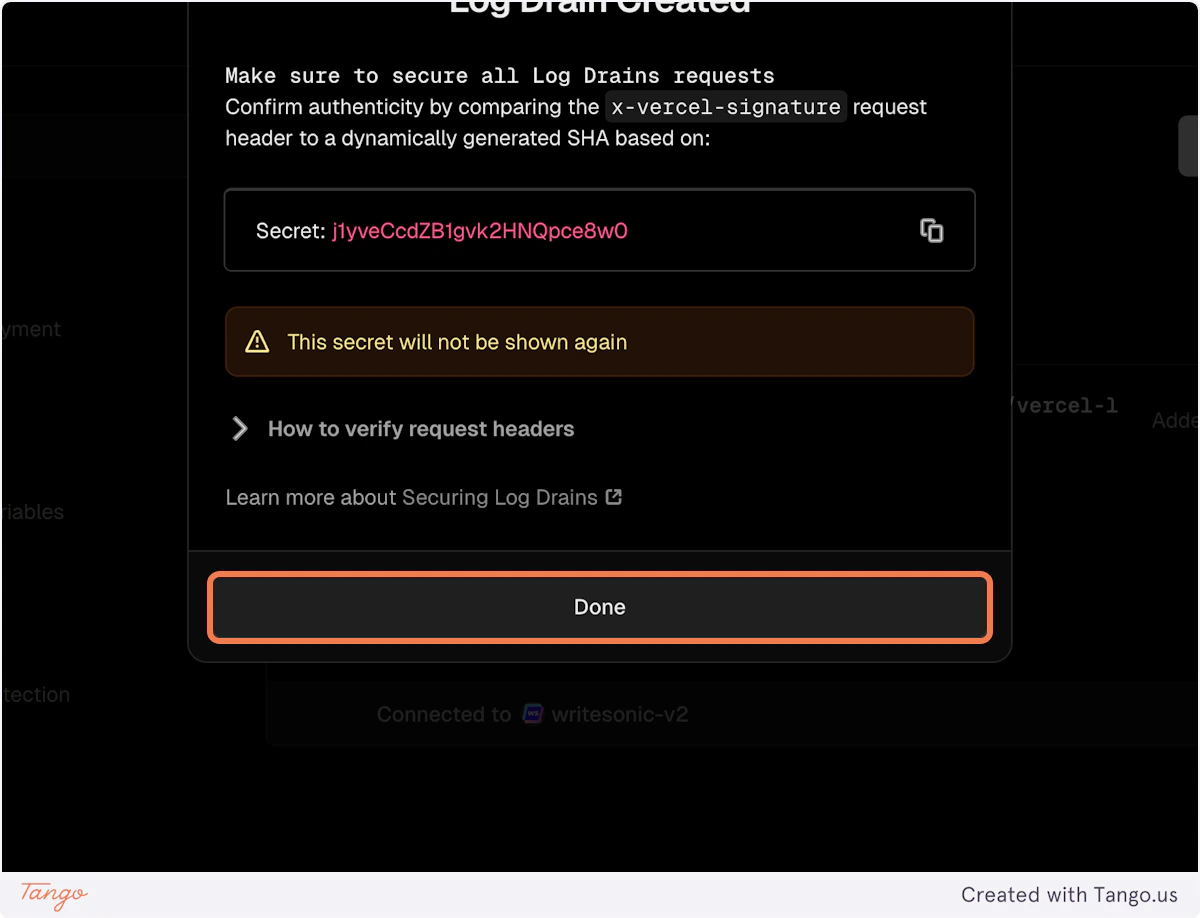
### 28. Click on Done

<img src="https://mintcdn.com/writesonic/JCO6iEy5GoxeFx_e/images/docs/workflows/22177c05-460e-4394-a998-63c424f04747/steps/426f96eb-2585-40e4-adce-1c855ba41252/8a606b50-3a79-40a8-a0cb-fa5b3dbf1f44.png?fit=max&auto=format&n=JCO6iEy5GoxeFx_e&q=85&s=f9adb8be312025eb9fcdeb0c8fecf880" alt="Step 28 screenshot" width="1200" height="918" data-path="images/docs/workflows/22177c05-460e-4394-a998-63c424f04747/steps/426f96eb-2585-40e4-adce-1c855ba41252/8a606b50-3a79-40a8-a0cb-fa5b3dbf1f44.png" />

## [Writesonic](https://app.writesonic.com/geo/ai-traffic-analytics)

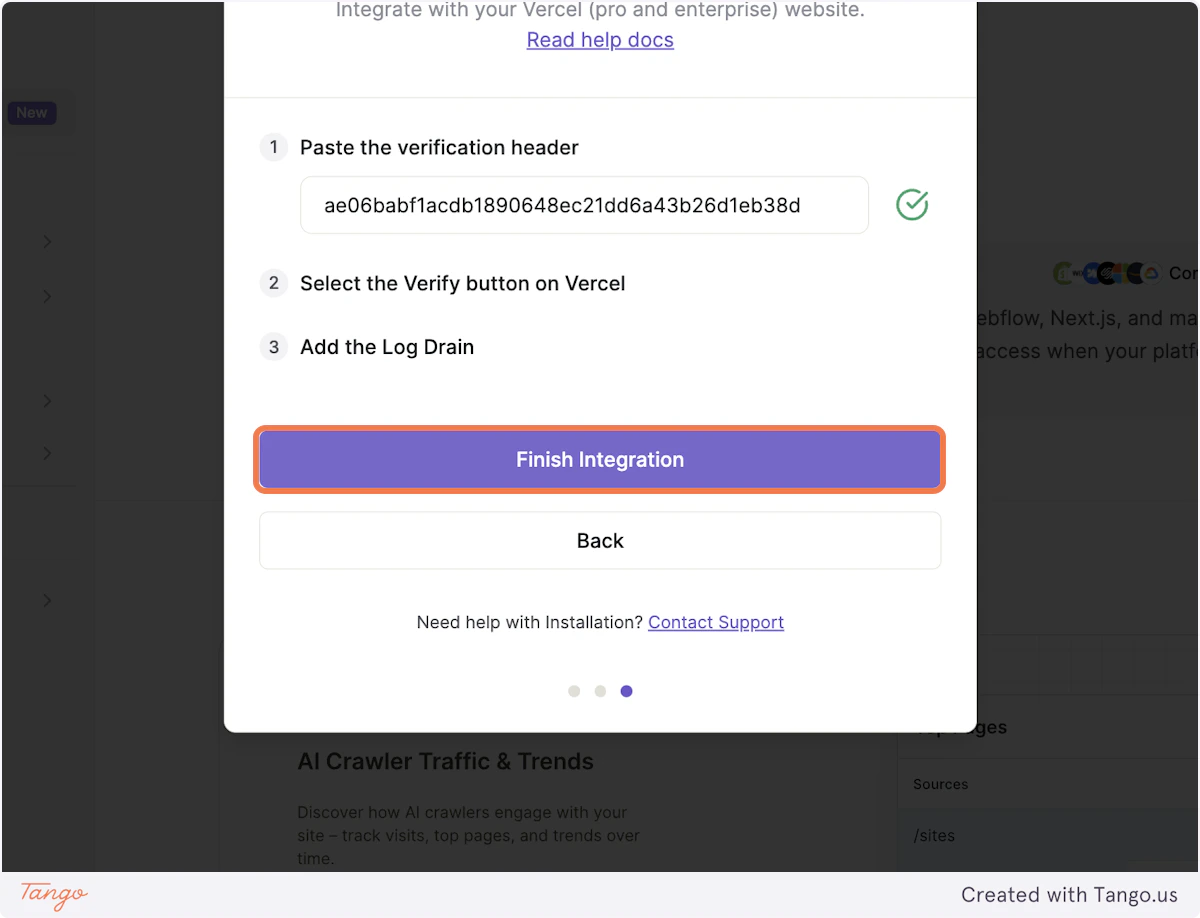
### 29. Click on Finish Integration
<img src="https://mintcdn.com/writesonic/JCO6iEy5GoxeFx_e/images/docs/workflows/22177c05-460e-4394-a998-63c424f04747/steps/3470c156-3ccd-4c89-ae12-adfd5696362c/2ae98b29-7870-463b-a7cc-3e09a873409b.png?fit=max&auto=format&n=JCO6iEy5GoxeFx_e&q=85&s=36e3cdf506bf0e5bcfaeaad277819043" alt="Step 29 screenshot" width="1200" height="918" data-path="images/docs/workflows/22177c05-460e-4394-a998-63c424f04747/steps/3470c156-3ccd-4c89-ae12-adfd5696362c/2ae98b29-7870-463b-a7cc-3e09a873409b.png" />

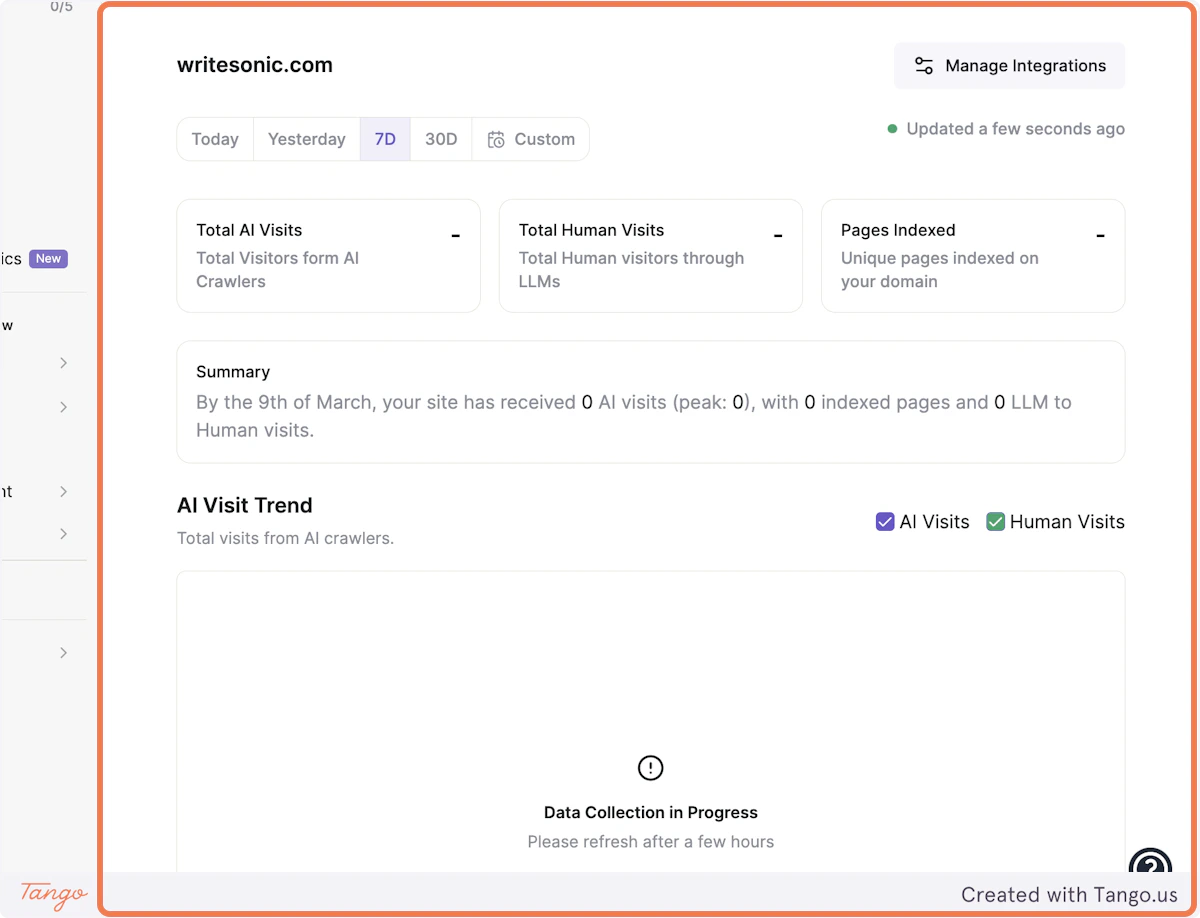
### 30. Your website will start capturing AI traffic using Vercel Integration
<img src="https://mintcdn.com/writesonic/JCO6iEy5GoxeFx_e/images/docs/workflows/22177c05-460e-4394-a998-63c424f04747/steps/4b0ea2da-d6ea-4d63-9382-3da9131593e8/29e0ebda-487e-465e-b200-a0ac34db7c61.png?fit=max&auto=format&n=JCO6iEy5GoxeFx_e&q=85&s=f94bb658f08155b8bd87fe67a7a2b87f" alt="Step 30 screenshot" width="1200" height="918" data-path="images/docs/workflows/22177c05-460e-4394-a998-63c424f04747/steps/4b0ea2da-d6ea-4d63-9382-3da9131593e8/29e0ebda-487e-465e-b200-a0ac34db7c61.png" />

***

[Integrating with Wordpress](/docs/integrating-with-wordpress)

[Integrating with Drupal](/docs/integrating-with-drupal)